AI Upscaling: Turn Low-Res Product Photos Into Print-Ready Images
Patternful Team | 2 min read
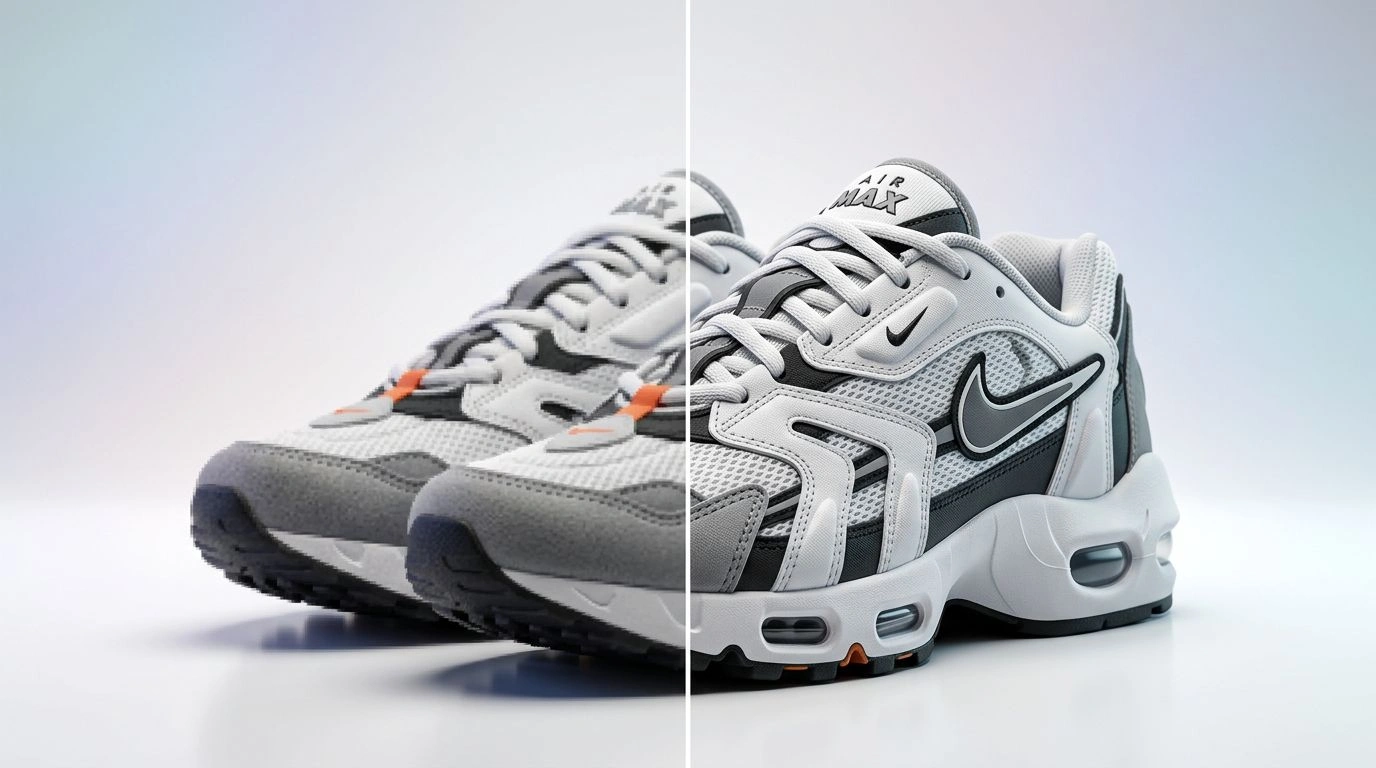
Low-resolution product photos are one of the most common — and most frustrating — problems in ecommerce. A supplier sends a tiny thumbnail, an old listing image is too small to zoom, or a design needs to be printed large and comes out soft and pixelated. You can't sell what shoppers can't see clearly.
AI upscaling solves this. Instead of just stretching pixels, it intelligently enlarges an image and reconstructs detail, so a small, soft photo becomes a large, sharp, print-ready one. Here's how it works and how to use it.
Table of Contents
- What Is AI Upscaling?
- Upscaling vs. Ordinary Resizing
- Why Resolution Matters for Ecommerce and Print
- How the Image Upscaler Works
- Use Cases for Product Sellers
- How to Upscale an Image Step by Step
- Tips for the Sharpest Results
- Frequently Asked Questions
- Conclusion
What Is AI Upscaling?
AI upscaling uses machine learning to increase an image's resolution while reconstructing fine detail. A basic enlarge simply stretches the existing pixels, which is why blown-up photos look blurry and blocky. AI does something smarter: it has learned, from millions of images, what sharp edges, textures, and details are supposed to look like — so it predicts and fills in the missing detail as it enlarges.
The result is an image that isn't just bigger, but genuinely sharper and cleaner than the original — as if it had been shot at a higher resolution to begin with.
Upscaling vs. Ordinary Resizing
It's worth being precise about the difference:
- Resizing changes an image's dimensions. Making it smaller is fine, but naively making it larger just spreads the same pixels over more space — hello, blur.
- AI upscaling increases the dimensions and adds real, plausible detail, so the enlarged image stays crisp.
They also solve different problems. If you need one image in many aspect ratios, that's a job for the Image Resizer. If you need a small image to become a large, high-quality one, that's upscaling. Often you'll use both together.
Why Resolution Matters for Ecommerce and Print
Resolution quietly affects sales and production in several ways:
- Marketplaces reward zoomable images. Platforms like Amazon enable hover-zoom only above a resolution threshold — and zoom is proven to lift conversion.
- Print-on-demand and physical print need high DPI. A file that looks fine on screen can print blurry; large formats demand far more pixels.
- Banners and large displays need big files. Homepage heroes, posters, and trade-show displays fall apart if the source is too small.
- Sharp images build trust. Crisp, detailed photos read as higher quality — soft ones read as cheap or fake.
How the Image Upscaler Works
The Image Upscaler makes the whole process a few clicks: upload a low-resolution image, choose an upscale factor (such as 2x or 4x), let the AI enlarge and enhance it, and download the print-ready result. The AI handles edge sharpening and detail reconstruction automatically, so you don't need any editing software or manual retouching.
Because it reconstructs rather than stretches, even a modest source image can become large enough for print, banners, or full-screen display.
Use Cases for Product Sellers
- Rescue supplier and dropshipping photos. Turn the tiny images manufacturers send into usable, high-res listing shots.
- Prepare designs for print-on-demand. Get artwork and mockups to the DPI POD platforms require.
- Enlarge for banners and posters. Scale a product shot up for a homepage hero or a physical display.
- Restore old, low-res listing photos. Refresh legacy images without re-shooting the product.
- Enhance AI-generated images for print. Push generated visuals to a resolution suitable for physical products.
How to Upscale an Image Step by Step
- Upload your image. Start with the best-quality source you have, even if it's small.
- Choose the upscale factor. Pick 2x, 4x, or the level that reaches your target size.
- Generate. The AI enlarges and reconstructs detail automatically.
- Review the result. Zoom in to check faces, text, and fine textures.
- Download. Save the print-ready, high-resolution file.
Tips for the Sharpest Results
- Start with the best source available. The more real detail the AI has to work from, the better the reconstruction.
- Don't over-upscale. Only enlarge as much as you actually need; excessive factors can introduce artifacts.
- Combine with other tools. Remove the background or resize for each channel before or after upscaling for a complete workflow.
- Review fine details. Text, logos, and faces are where artifacts show up first — regenerate if something looks off.
Frequently Asked Questions
What is AI upscaling? It's using AI to increase an image's resolution while reconstructing detail, so the enlarged version stays sharp instead of turning blurry like a normal enlarge.
Can AI really make a blurry photo sharp? It can significantly improve softness and low resolution by reconstructing plausible detail. It's not infinite — extremely tiny or heavily damaged images have limits — but the improvement is often dramatic.
What resolution do I need for print? Print typically wants around 300 DPI at the final size. Upscaling lets you reach the pixel count that translates to a crisp print at your target dimensions.
Does upscaling change the content of my image? No. It preserves your product and composition — it only adds resolution and sharpness, not new objects.
Are my uploaded images private? Yes. Uploaded images remain your property and are automatically deleted from the servers after a few hours.
Conclusion
Low resolution shouldn't stop you from listing, printing, or advertising a product. AI upscaling turns small, soft photos into large, sharp, print-ready images — rescuing supplier shots, prepping print-on-demand designs, and making your listings zoomable and trustworthy.
Got a photo that's too small to use? Try the Image Upscaler and make it print-ready in seconds.