One Image, Every Channel: AI Image Resizer for Ecommerce
Patternful Team | 2 min read
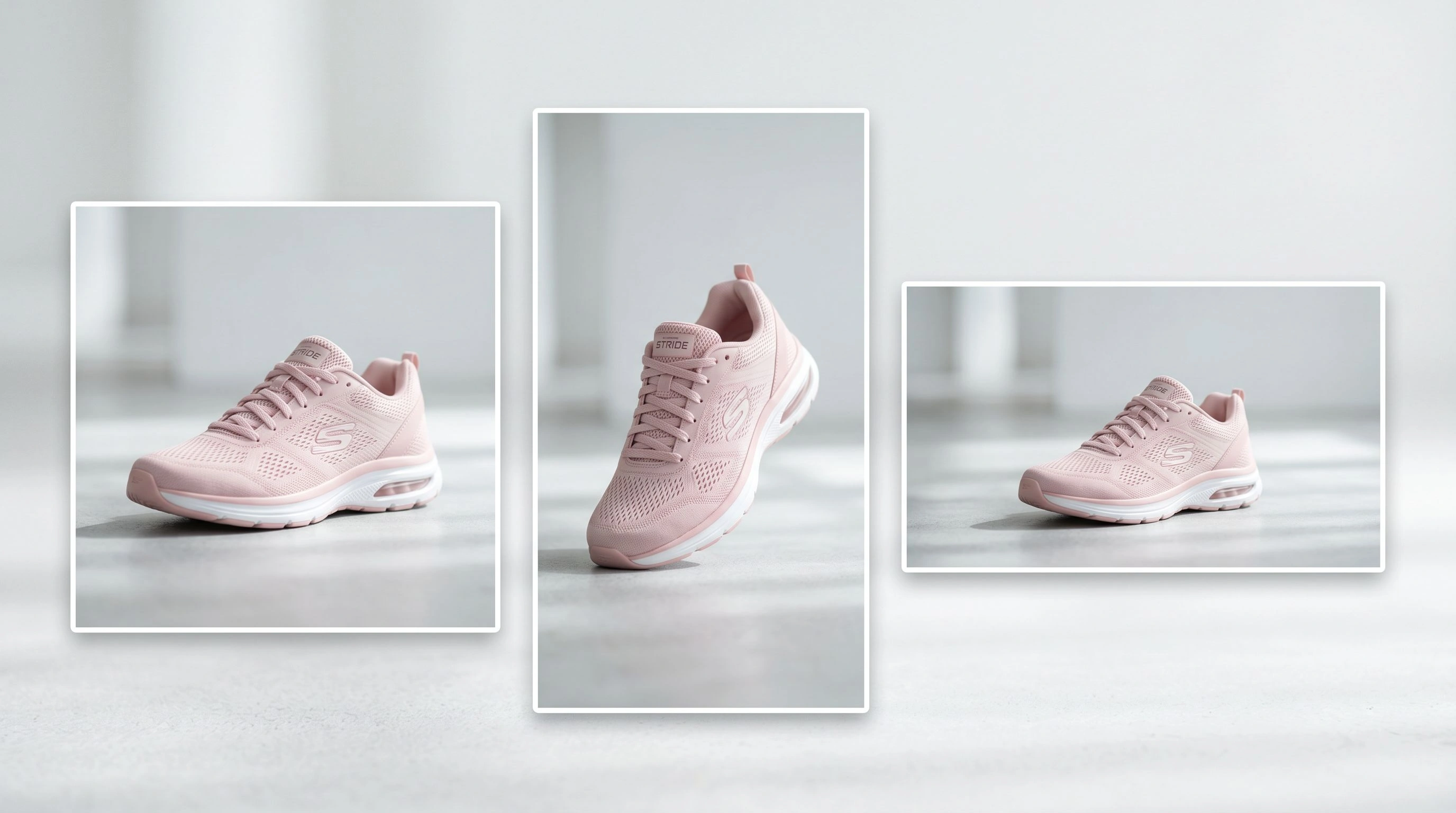
Every ecommerce seller has the same problem: one product photo, and a dozen places it needs to fit — each demanding a different aspect ratio. The marketplace wants a square. The Story ad wants a tall vertical. The homepage banner wants a wide landscape. Forcing one image into all of them with a basic resizer means cropping off the product or stretching it out of shape.
The AI Image Resizer fixes this. It reframes a photo to any aspect ratio without cropping or stretching — intelligently generating new space so your entire subject stays in frame and undistorted. One image becomes ready for every channel in seconds.
This guide covers what an AI image resizer is, why aspect ratios matter so much in ecommerce, how it differs from a normal resizer, the use cases, a step-by-step workflow, and practical tips.
Table of Contents
- What Is an AI Image Resizer?
- Why Aspect Ratios Matter in Ecommerce
- How It Differs From a Normal Resizer
- Supported Aspect Ratios
- Ecommerce Use Cases for the Image Resizer
- How to Resize a Product Photo Step by Step
- Tips for the Best Results
- AI Resizer vs. Traditional Cropping
- Frequently Asked Questions
- Conclusion
What Is an AI Image Resizer?
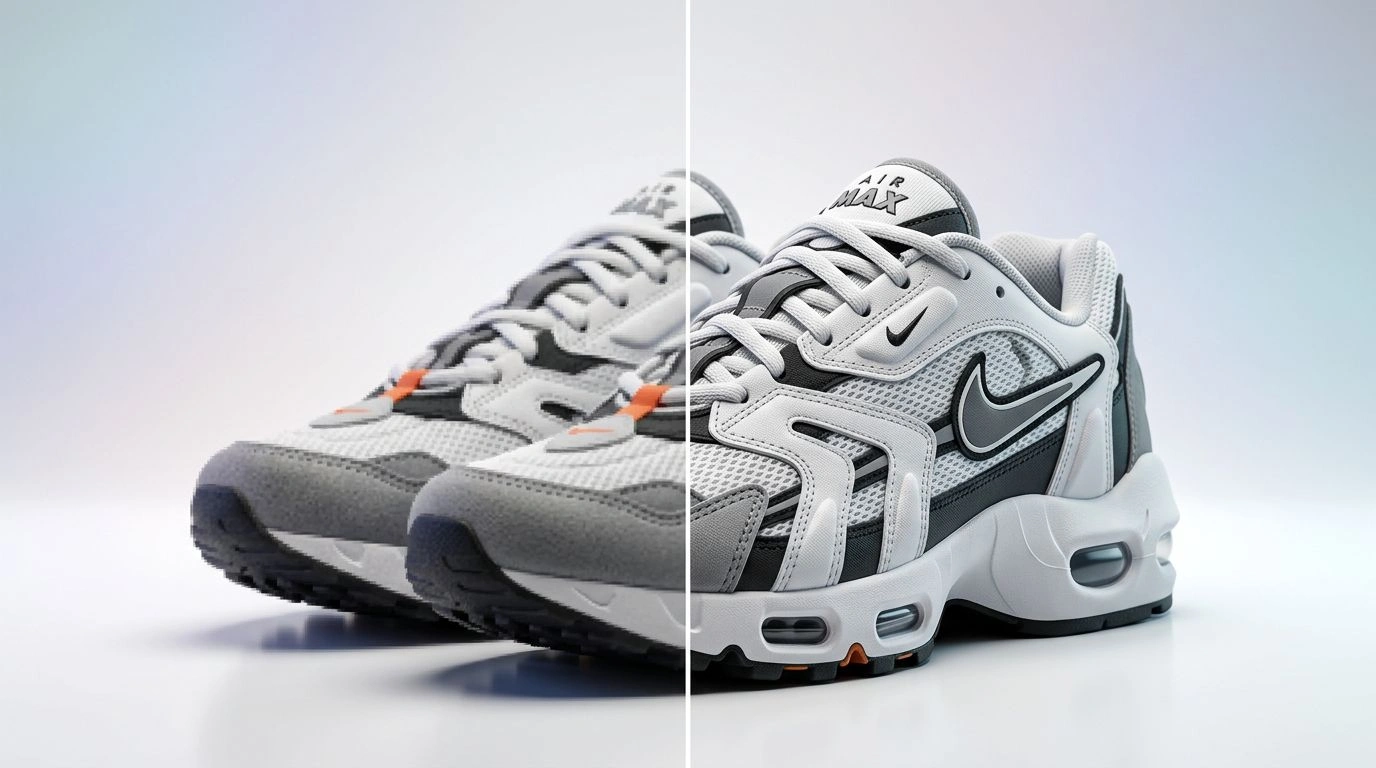
A traditional resizer changes an image's dimensions by cropping (cutting content off) or stretching (warping the pixels) to force it into a new shape. Either way, your product suffers.
The AI Image Resizer works differently. It reframes the photo — repositioning the subject within a new canvas and generating matching content wherever extra space is needed — so the whole subject is preserved and the proportions stay natural. The result reads as the same product photographed for that exact format, not a butchered crop.
Why Aspect Ratios Matter in Ecommerce
Every platform expects a different shape, and getting it wrong has real costs:
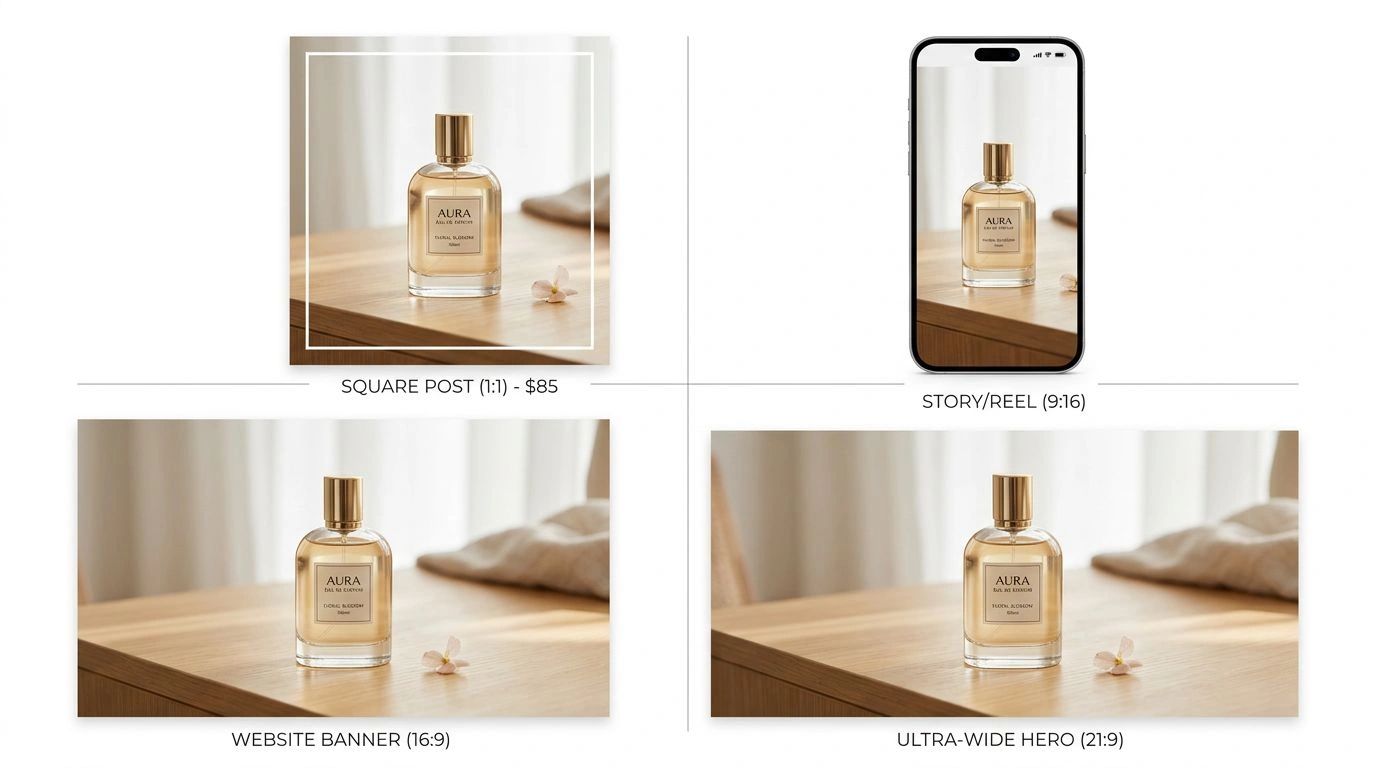
- Amazon & Shopify product grids favor square (1:1).
- Instagram feed posts are often 1:1 or 4:5.
- Stories, Reels, and TikTok are 9:16 vertical.
- YouTube thumbnails and website banners are 16:9.
- Ultra-wide hero sections can run 21:9.
When you upload the wrong ratio, the platform auto-crops it — frequently lopping off the product, the logo, or your carefully placed text. A correctly-framed image, by contrast, looks professional everywhere it appears and protects your conversion rate.
How It Differs From a Normal Resizer
The distinction is simple but important:
- A normal resizer changes pixel dimensions and will distort or crop to hit a new ratio. Your circle becomes an oval; your product loses its edges.
- The AI Image Resizer preserves the subject's proportions and fills new space intelligently, so a square product shot can become a wide banner without the product being stretched or chopped.
In other words, one tool destroys information to fit a shape; the other adds matching information so nothing is lost.
Supported Aspect Ratios
The Image Resizer reframes to the ratios ecommerce teams actually use:
- 1:1 — marketplace grids, Instagram feed
- 4:3 / 3:4 — flexible portrait and landscape
- 16:9 — banners, YouTube thumbnails, email headers
- 9:16 — Stories, Reels, TikTok
- 21:9 / 9:21 — ultra-wide hero sections and tall mobile layouts
Each resize costs a single credit, and uploads can be up to 10MB.
Ecommerce Use Cases for the Image Resizer
1. Adapt One Shot to Every Channel
Turn a single product photo into a 1:1 listing image, a 9:16 Story ad, and a 16:9 banner — without three separate edits or a reshoot.
2. Keep a Consistent Look Everywhere
Reframe your whole catalog to matching ratios so your brand looks cohesive across the storefront, ads, and social feeds.
3. Stop Platforms From Auto-Cropping You
Publish each image in the exact ratio the platform expects, so thumbnails and posts display the full product instead of an awkward auto-crop.
4. Build Marketing Visuals at Exact Ratios
Prepare ad creative, email headers, and landing-page imagery at the precise dimensions each slot requires.
5. Repurpose Without Reshooting
Got a great hero shot in landscape but need a vertical version? Reframe it instead of booking the studio again.
This pairs well with the AI Image Expander when you need to add canvas before reframing, and with the Change Camera tool to generate additional product angles.
How to Resize a Product Photo Step by Step
- Upload your product photo. Open the Image Resizer and add your image.
- Pick a target aspect ratio. Choose the shape your destination needs.
- Add an optional prompt. Guide what the AI generates in any new space, if you want extra control.
- Generate. The AI reframes the photo and fills the new area so nothing is cropped.
- Download your resized image, ready to publish.
Tips for the Best Results
- Start with a high-quality image — clean sources reframe more convincingly.
- Pick the exact ratio your destination needs so you don't re-resize later.
- Use a prompt when the new space should match a specific background or surface.
- Regenerate for variations and pick the cleanest reframe; each run is only a credit.
AI Resizer vs. Traditional Cropping
- Cropping: Cuts the subject to force a new ratio — you lose part of the product.
- Stretching: Warps proportions to fit — the product looks distorted and unprofessional.
- AI Image Resizer: Reframes the subject and fills new space — the product stays whole and natural in any ratio.
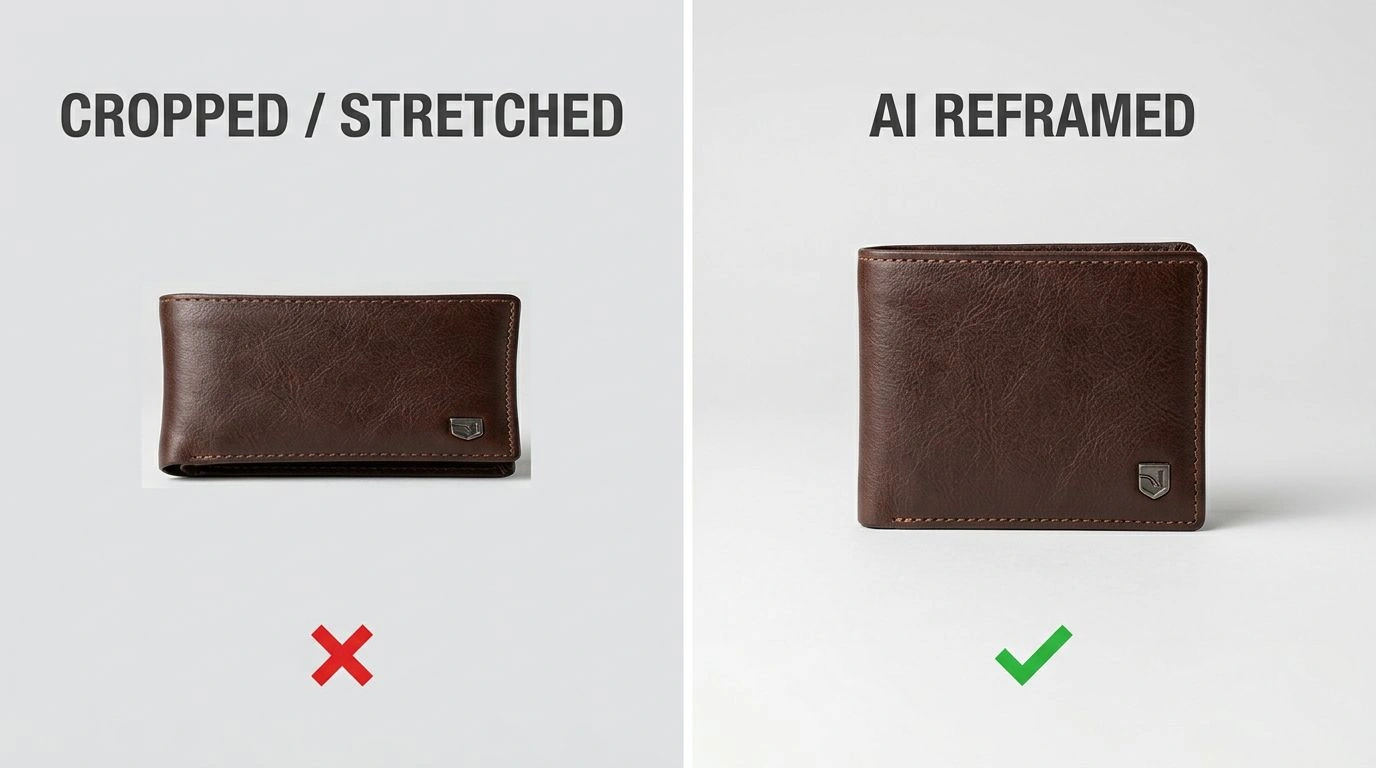
For ecommerce, where every image is a sales tool, reframing beats cropping every time.
Frequently Asked Questions
How do I resize an image to a new aspect ratio? Upload the image, choose a target ratio, and generate. The AI reframes the photo and fills any new space so nothing is cropped, then you download the result.
How is this different from a normal image resizer? A normal resizer crops or stretches to fit a new ratio, cutting off or distorting content. The AI Image Resizer reframes intelligently and generates matching content where needed, preserving the whole subject.
Which aspect ratios are supported? Popular ratios including 1:1, 16:9, 9:16, 4:3, 3:4, 21:9, and 9:21 — covering social media, thumbnails, banners, and ultra-wide layouts.
Will my product get distorted? No. The tool preserves the original proportions of your subject and adds space rather than stretching, so the result looks natural.
Are my images private? Yes. Uploaded images remain your property and are automatically deleted from the servers after a few hours.
Conclusion
A single product photo has to work across marketplaces, social platforms, ads, and your storefront — each with its own aspect ratio. The AI Image Resizer lets you hit every one of them without cropping or stretching, turning one image into a full set of perfectly-framed formats in seconds.
Ready to make one image fit every channel? Try the Image Resizer today.