AI Image Outpainting for Ecommerce Product Photos
Patternful Team | 3 min read
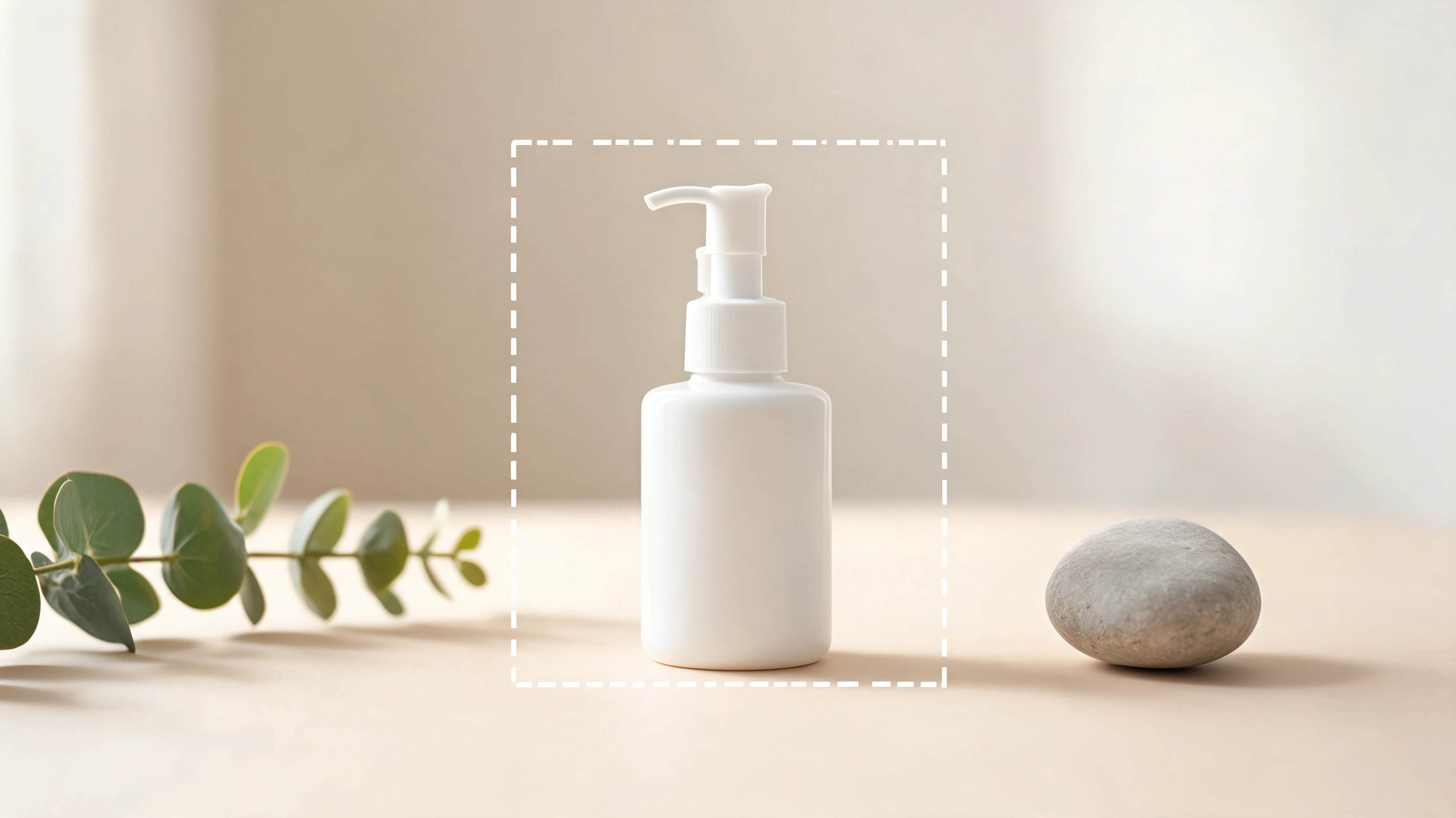
Outpainting is one of the most useful AI editing techniques for online stores — and most sellers have never tried it. It solves a problem every ecommerce team runs into constantly: a product photo that's the wrong shape for where it needs to go.
The Image Expander tool uses AI outpainting to expand a product photo beyond its original borders, generating new, realistic surroundings that blend seamlessly with the original — instead of cropping away your product or stretching it out of proportion. One photo becomes a perfect fit for every channel.
This guide explains what outpainting is, why it matters for product photos, how the Image Expander works, the key ecommerce use cases, a step-by-step workflow, and how it compares to cropping and stretching.
Table of Contents
- What Is AI Outpainting?
- Why Outpainting Matters for Ecommerce Product Photos
- How the Image Expander Works
- Ecommerce Use Cases for Image Outpainting
- How to Expand a Product Photo Step by Step
- Tips for Clean, Seamless Results
- Outpainting vs. Cropping and Stretching
- Frequently Asked Questions
- Conclusion
What Is AI Outpainting?
Outpainting generates new pixels outside the original frame of a photo. If you've heard of inpainting — filling a hole or removing an object inside an image — outpainting is its mirror image: it extends the picture outward, inventing matching content beyond the edges.
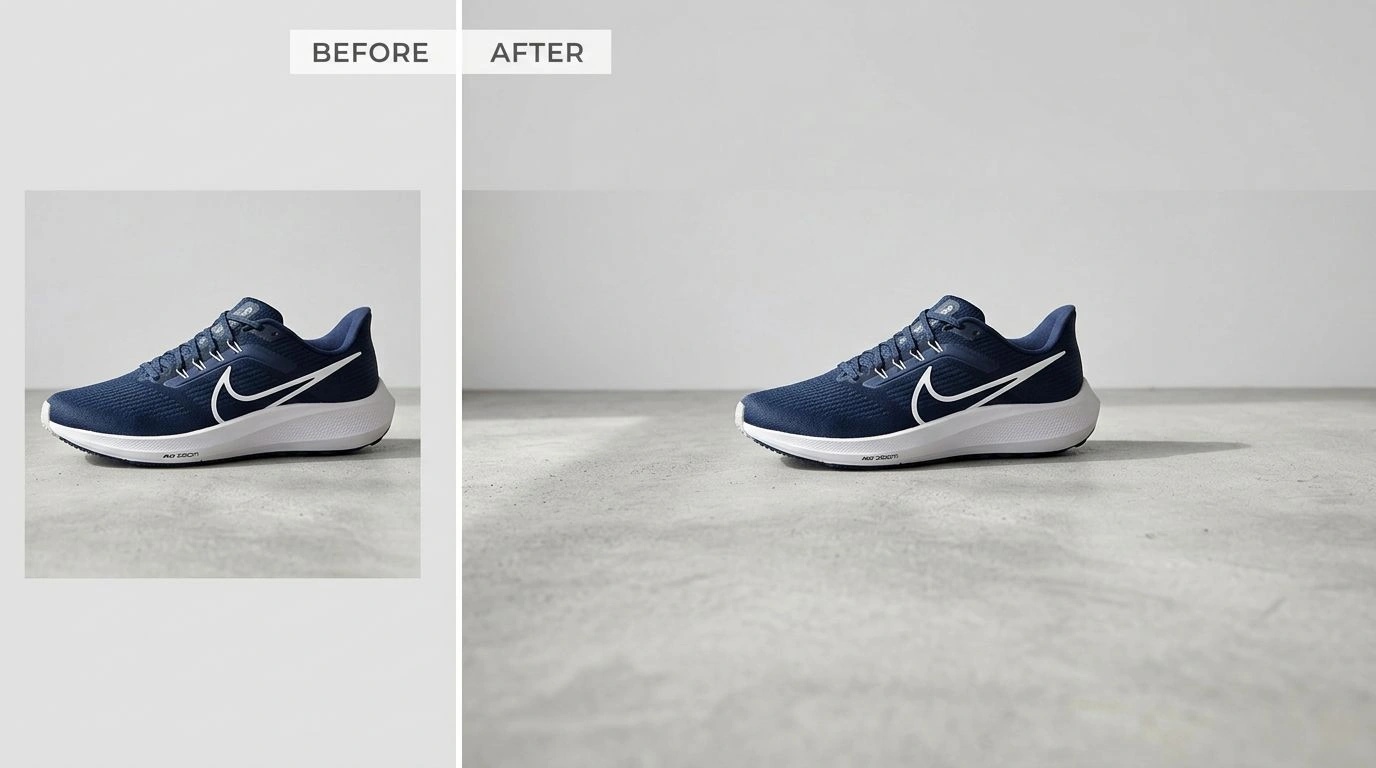
The Image Expander is built on this technique. You upload a photo, choose a larger canvas, and the AI fills the new area so the result looks like a wider shot of the same scene — matching the lighting, texture, and perspective at the edges so the join is invisible. Nothing in your original is cropped, covered, or distorted; you simply get more image around it.
Why Outpainting Matters for Ecommerce Product Photos
Product photos almost never arrive in the exact shape each channel needs. In a typical week a store might need:
- A supplier's tight square crop turned into a roomy listing image.
- More whitespace around the product to meet a marketplace's standards.
- A wide 16:9 hero banner for the homepage or an email header.
- A 9:16 vertical version for a Story or Reel ad.
The old fixes all hurt: cropping loses part of the product, stretching distorts it into something that looks unprofessional, and adding flat padding looks cheap and amateur. Outpainting solves all of them at once by generating real, matching background — so the product stays intact and the framing looks intentional.
That polish has real consequences: cleaner, correctly-framed images build trust, satisfy marketplace image requirements, and convert better than awkwardly cropped or stretched ones.
How the Image Expander Works
The Image Expander gives you two ways to define the new canvas:
- Expand by aspect ratio: Pick a target shape — 1:1, 16:9, 9:16, 4:3, 3:4, 3:2, 2:3, 5:4, or 4:5 — and the AI grows the canvas to that ratio and fills the new space.
- Custom canvas: Enter an exact pixel size (up to 5000px on any side) when you need a precise dimension for an ad slot, print, or template.
You can also add an optional prompt to guide what the AI generates in the new area — for example, "plain white studio background" or "wooden table surface." Each expansion costs a single credit, and uploads can be up to 10MB.
Ecommerce Use Cases for Image Outpainting
Here's where the Image Expander pays off in a real store:
1. Add Clean Whitespace for Marketplaces
Marketplaces often want the product to occupy a certain portion of the frame with breathing room around it. Outpaint a tight shot to add natural whitespace and meet those standards without re-shooting.
2. Turn a Crop Into a Wide Hero Banner
Take a standard square product photo and expand it to 16:9 (or a custom ultra-wide size) to create a homepage hero or email banner — with room for headlines and CTAs beside the product.
3. Uncrop Photos That Got Cut Off
If a shot clips the top of a bag or the edge of a sofa, outpainting reconstructs the missing surroundings so the product finally has room to breathe.
4. Repurpose One Shot Into Every Format
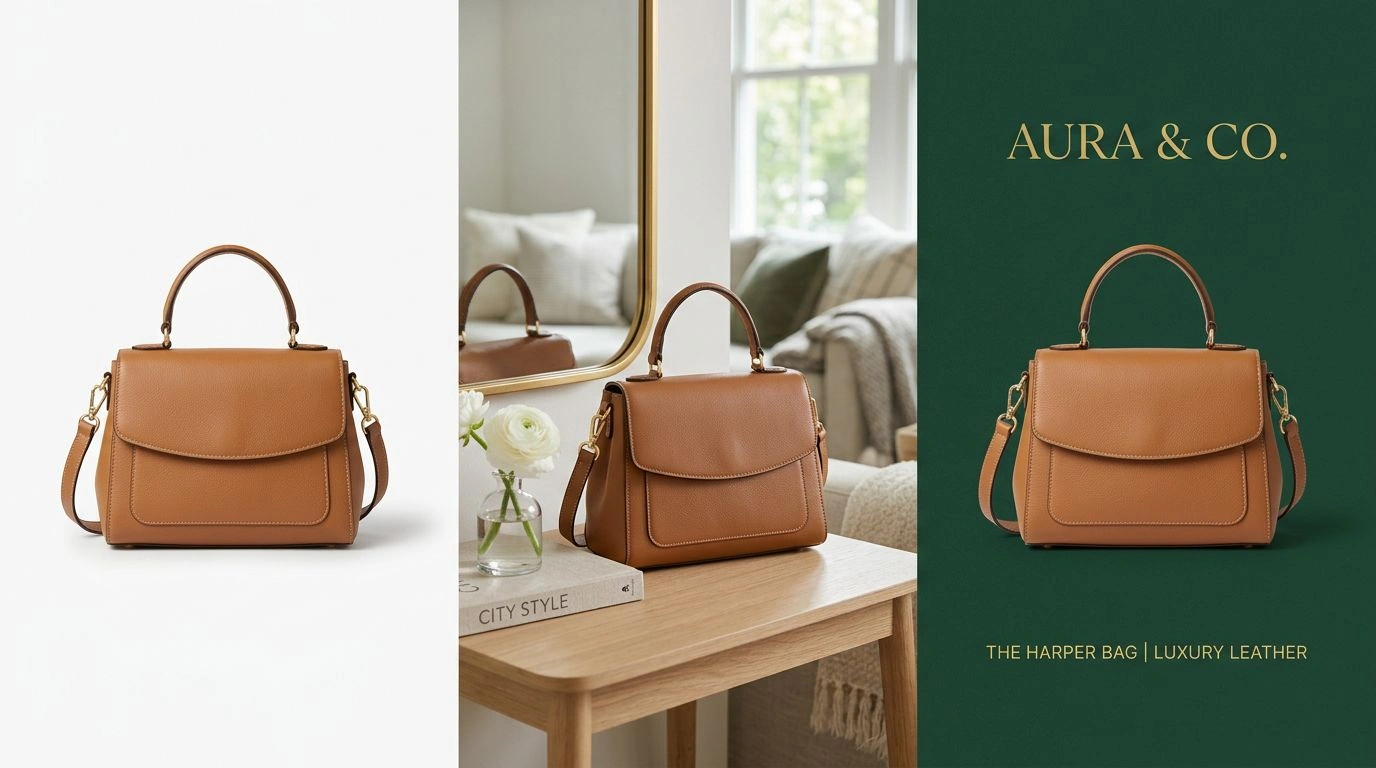
Generate square (1:1) for marketplace grids, vertical (9:16) for Stories and Reels, and wide (16:9) for banners — all from a single source image, all without losing the product.
5. Make Room for Text and Promo Overlays
Expand the canvas to create empty, on-brand space for sale badges, pricing, or ad copy — instead of cramming text over the product itself.
6. Fix Supplier and Dropshipping Photos
When you only have a manufacturer's oddly-shaped image, outpainting lets you reframe it into clean, consistent dimensions that match the rest of your catalog.
For repurposing to social formats specifically, the AI Image Resizer is a natural companion — outpaint to add room, then reframe to each channel's ratio.
How to Expand a Product Photo Step by Step
- Upload your product photo. Open the Image Expander and add the image you want to extend.
- Choose your canvas. Pick a target aspect ratio, or switch to custom and enter exact pixel dimensions.
- Add an optional prompt. Describe the surroundings you want generated, if you want more control over the fill.
- Generate. The AI outpaints new, matching content beyond the original edges.
- Download your expanded image, ready to publish.
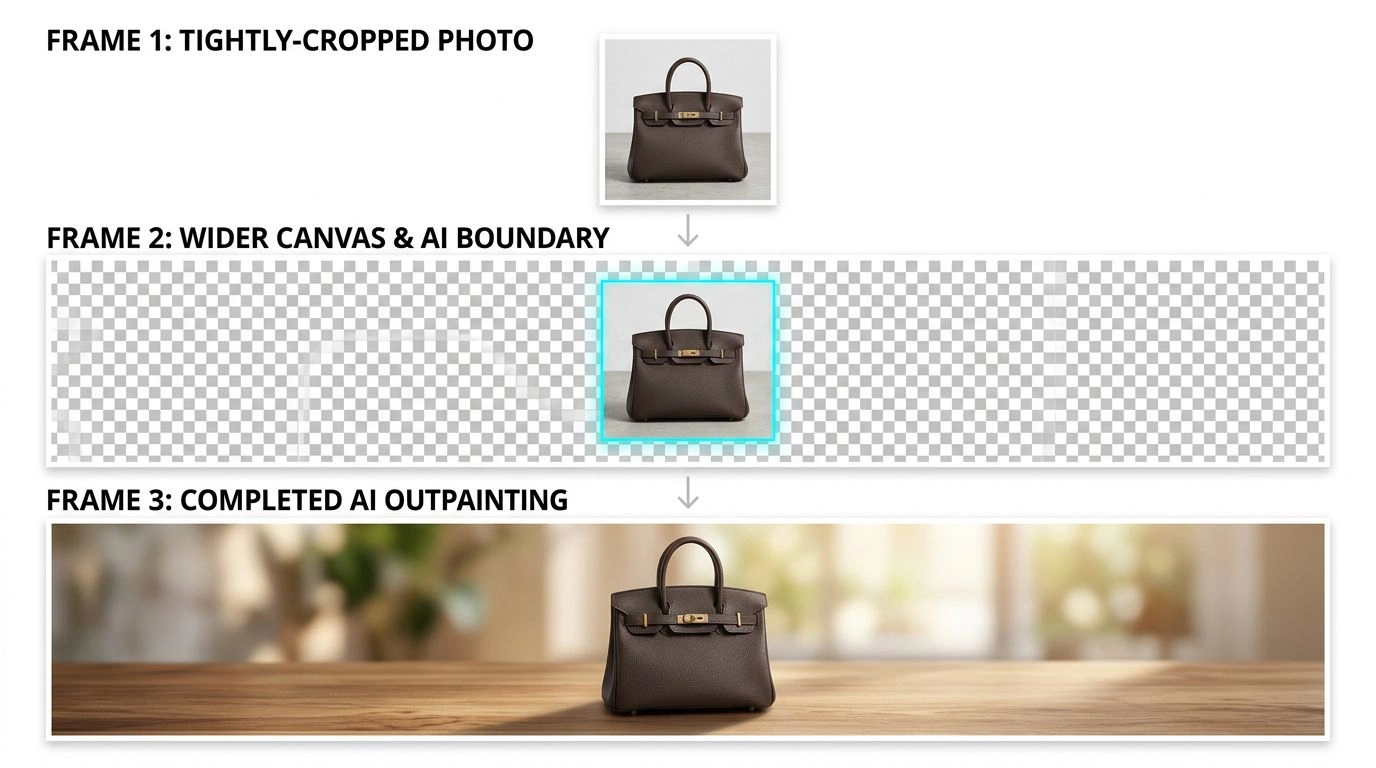
The whole process takes seconds, and because each render is just a credit, it's cheap to try a few options.
Tips for Clean, Seamless Results
- Start with a high-quality image. Sharp, well-lit sources give the AI more to match at the edges.
- Expand in reasonable increments. A modest extension blends more convincingly than a massive one; for big changes, expand in a couple of passes.
- Use a prompt for tricky backgrounds. If the surroundings should be a specific surface or color, say so in the prompt.
- Keep the product centered when you need symmetric space on both sides (common for banners).
- Regenerate for variations. Different runs produce slightly different fills — pick the cleanest.
Outpainting vs. Cropping and Stretching
The difference comes down to what happens to your product:
- Cropping: Forces a new ratio by removing content — you lose part of the product or scene.
- Stretching: Warps the image to fit, distorting proportions and making it look unprofessional.
- Flat padding: Adds plain bars or borders that look cheap and waste the frame.
- Outpainting: Adds realistic, matching scene around the original — the product stays intact and the result looks like a genuine wider photograph.
For ecommerce, where image quality directly affects conversion and trust, outpainting is the only one of these that improves the image instead of compromising it.
Frequently Asked Questions
What is image outpainting? Outpainting uses AI to generate new pixels outside a photo's original frame, inventing realistic surroundings that blend seamlessly with the existing image — the opposite of cropping.
How do I expand an image beyond its borders? Upload the image, pick a target aspect ratio (or a custom canvas size), and generate. The AI fills the new area to match the original, then you download the result.
Which aspect ratios are supported? Common ratios including 1:1, 16:9, 9:16, 4:3, 3:4, 3:2, 2:3, 5:4, and 4:5 — or set your own custom canvas up to 5000px per side.
Will the new area look fake? No. The AI matches lighting, texture, and perspective at the edges so the generated surroundings are hard to distinguish from the original photo. Start from a high-quality image for the best blend.
Are my images private? Yes. Uploaded images remain your property and are automatically deleted from the servers after a few hours.
Conclusion
AI outpainting turns one product photo into a flexible asset that fits anywhere — adding whitespace, building hero banners, uncropping cut-off shots, and producing every aspect ratio your channels demand, all without cropping or stretching. For ecommerce sellers juggling marketplaces, ads, and social, the Image Expander removes a constant, tedious bottleneck.
Ready to give your product photos more room? Try the Image Expander today.