White, Lifestyle, or Custom: Changing Product Photo Backgrounds with AI
Patternful Team | 2 min read
The background of a product photo does more selling than most sellers realize. A cluttered or mismatched background makes an entire store look amateur, while a clean or thoughtfully styled one builds trust and lifts conversion. It's the fastest visual signal a shopper reads before they even focus on the product.
The good news: you no longer need Photoshop skills or a studio to control it. AI can remove, replace, or restyle any product photo background in seconds. This guide covers the three background styles every seller should know — white, lifestyle, and custom — and exactly how to create each with AI.
Table of Contents
- Why Product Photo Backgrounds Matter
- The Three Background Styles
- How AI Background Editing Works
- How to Change a Background Step by Step
- When to Use Each Style
- Tips for Clean, Professional Results
- Frequently Asked Questions
- Conclusion
Why Product Photo Backgrounds Matter
The background does four jobs at once. It sets the tone (premium, playful, minimal), it helps you meet marketplace requirements (many platforms require pure white), it keeps your catalog consistent so your store looks cohesive, and it directs attention to the product instead of competing with it.
Get it wrong and even a great product looks cheap. Get it right and an ordinary product looks like it belongs in a brand campaign. That's why background editing is one of the highest-return AI tasks in ecommerce.
The Three Background Styles
Almost every product image you'll ever need falls into one of three background styles.
White or Plain Backgrounds
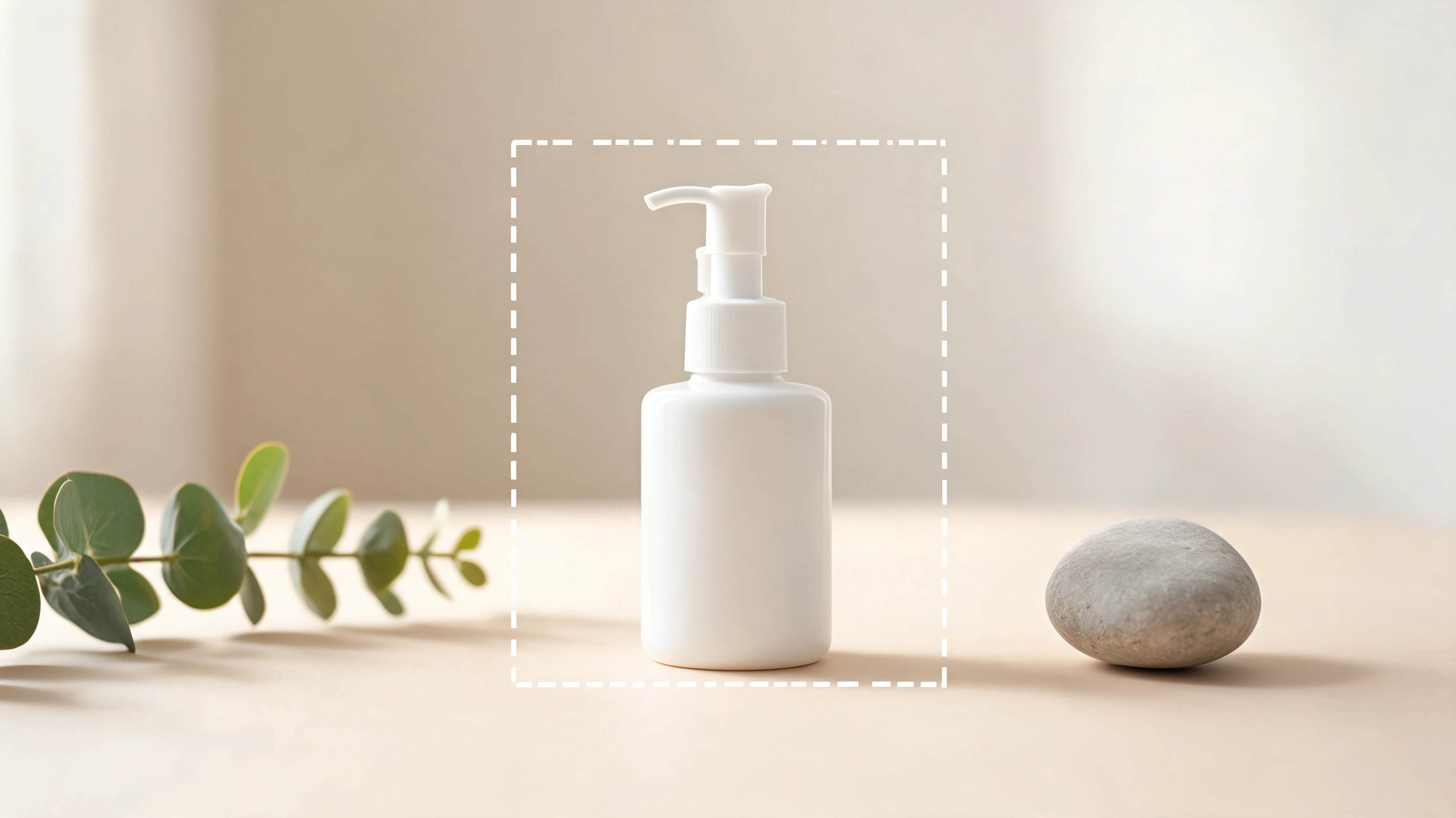
The marketplace standard. Clean, distraction-free, and often required by Amazon and other platforms for primary listing images. A consistent white (or single-color) background across your catalog instantly makes a store look professional. Use a background remover to knock out the original background and drop the product on clean white or transparent.
Lifestyle Backgrounds
These place the product in a real-world setting — on a table, in a styled room, or outdoors — so shoppers can picture owning it. Lifestyle scenes tell a story and are ideal for homepages, ads, and social. You can generate them by expanding a plain shot into a full scene with the Image Expander; the AI outpainting guide walks through it in detail.
Custom or Colored Backgrounds
On-brand colors, gradients, and props that make a product pop in ads and social feeds. Swap in your brand palette to build a recognizable, cohesive look. The change background color tool lets you set exactly the shade you want.
How AI Background Editing Works
Under the hood, AI background editing happens in two steps. First the model detects and separates the product from its original background — precisely tracing the edges, including tricky areas like hair, fur, or transparent materials. Then it either drops the product onto a transparent layer or solid color, or generates a brand-new scene behind it that matches the lighting and perspective.
For you, it's just: upload → choose remove or replace → pick a color or describe a scene → generate → download. No manual masking, no lasso tool, no layers.
How to Change a Background Step by Step
- Upload your product photo. A well-lit source with clear separation between product and background works best.
- Remove the existing background. Let the AI cut out the product cleanly onto transparent or white.
- Choose your new background. Keep it white for listings, pick a brand color, or describe a lifestyle scene to generate.
- Refine the edges. Check hair, handles, and thin details; regenerate if needed for a cleaner cut.
- Match shadows and light. For lifestyle and custom scenes, make sure the shadow direction looks natural.
- Export. Download in the format and size your channel needs — pair with the Image Resizer to hit every aspect ratio.
When to Use Each Style
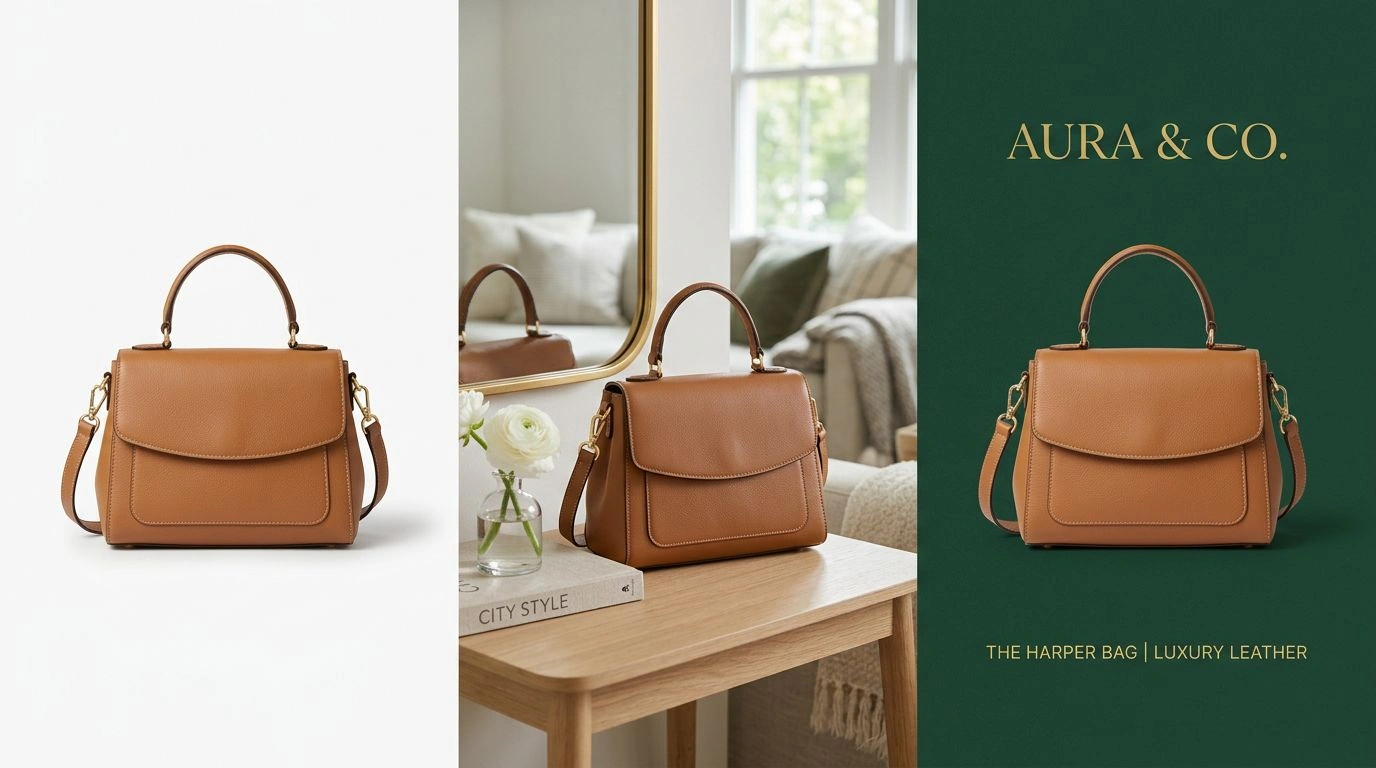
- White/plain: Primary marketplace listings, catalog grids, and anywhere consistency and compliance matter most.
- Lifestyle: Homepage heroes, email banners, ads, and social — anywhere you're selling a feeling, not just a spec.
- Custom color: Brand campaigns, promotions, and scroll-stopping social posts where standing out beats blending in.
A smart catalog uses all three: white for the listing, lifestyle for the story, custom for the ad.
Tips for Clean, Professional Results
- Start with good lighting. Even separation between product and background gives the AI cleaner edges.
- Watch the edges. Zoom in on hair, straps, and transparent parts — the giveaway of a bad cutout.
- Match the shadows. A floating product with no grounding shadow looks fake; keep or add a subtle one.
- Stay consistent within a collection. Same background, lighting, and framing across a set reads as one brand.
- Match the background to the channel. White for the marketplace, lifestyle for the ad — don't force one background everywhere.
Frequently Asked Questions
How do I remove a background from a product photo? Upload it to an AI background remover, which detects and cuts out the product automatically, then place it on white, transparent, or a new scene.
What background color is best for product listings? Pure white is the safest and most widely required for primary marketplace images. Use colored or lifestyle backgrounds for secondary images, ads, and social instead.
Can AI create a realistic lifestyle background? Yes. Tools like the Image Expander generate matching scenes around your product — a table, room, or outdoor setting — with realistic lighting and perspective.
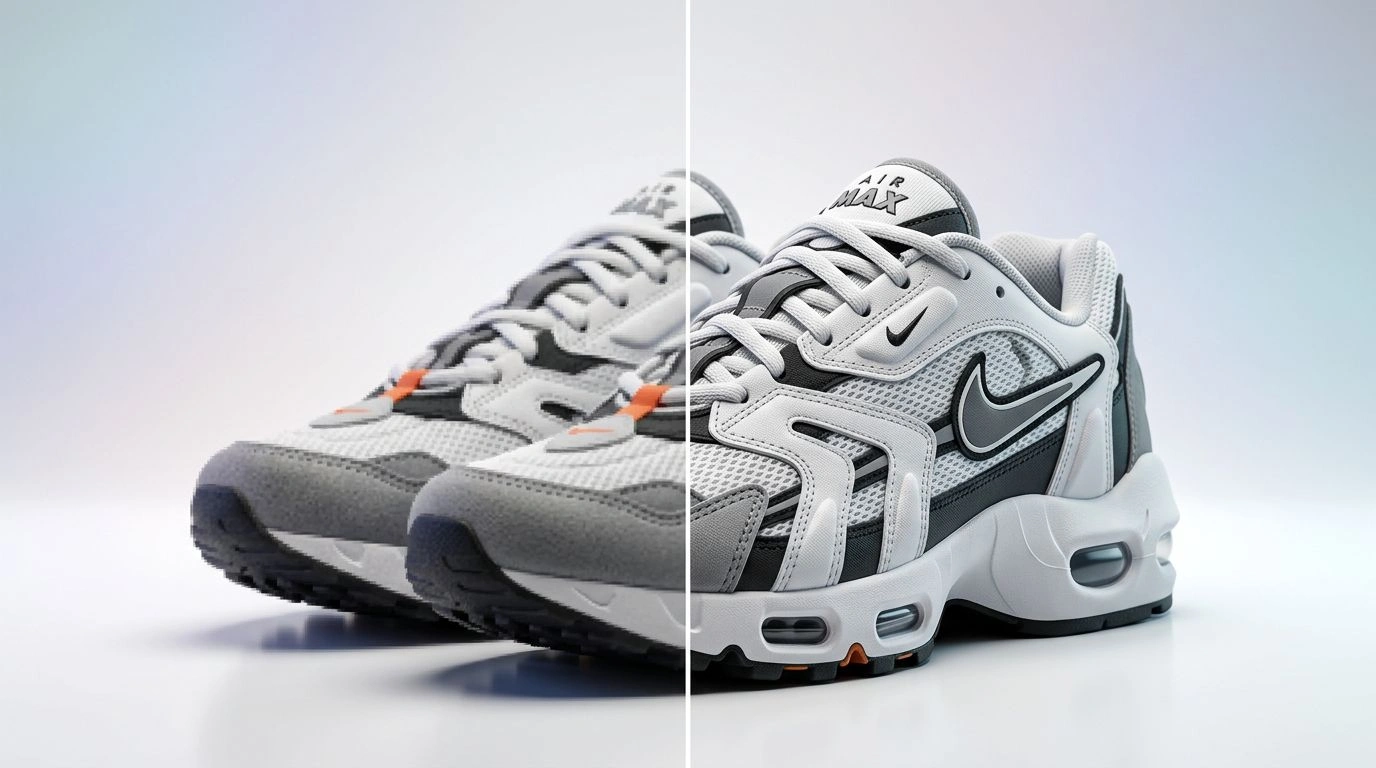
Will removing the background reduce image quality? No. The product itself is preserved; only the background changes. If your source is low-resolution, upscale it first with an Image Upscaler.
Are my uploaded images private? Yes. Uploaded images remain your property and are automatically deleted from the servers after a few hours.
Conclusion
The right background turns an ordinary product photo into a professional one — and AI lets you choose white, lifestyle, or custom in seconds, without any editing skills. Match the background to the job: white for listings, lifestyle for storytelling, custom color for standing out.
Ready to clean up your catalog? Try the background remover and give every product the backdrop it deserves.