Change Camera Angle of Product Photos with AI
Patternful Team | 3 min read
Every ecommerce store lives or dies on its product images — but capturing the same item from multiple angles is slow, expensive, and logistically painful. You need the physical product in hand, a lit set, and a photographer for every single perspective. Miss one angle, and the listing goes live looking incomplete.
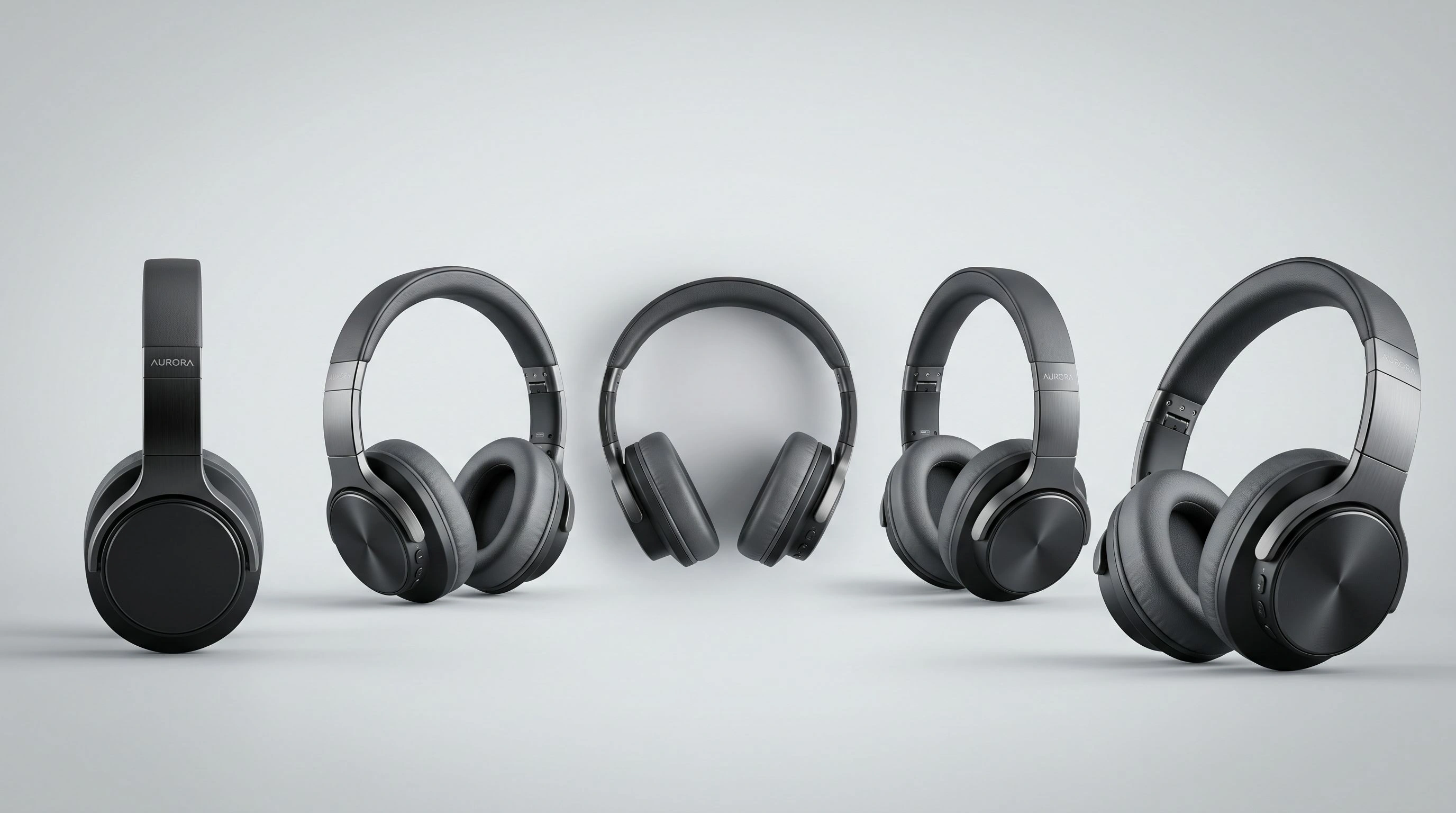
The Change Camera tool removes that bottleneck. It lets you change the camera angle of any product photo with AI — rotating, zooming, and tilting a virtual camera around your subject while the product, scene, and lighting stay perfectly consistent. One photo becomes a full set of angles in seconds.
This guide covers what the tool is, why camera angles are so important for online sales, how the virtual camera controls work, the exact ecommerce use cases, a step-by-step workflow, and practical tips for clean results.
Table of Contents
- What Is the Change Camera Tool?
- Why Camera Angles Matter in Ecommerce
- How the Virtual Camera Controls Work
- Ecommerce Use Cases for Change Camera
- How to Change a Product's Camera Angle Step by Step
- Tips for Clean, Consistent Results
- Change Camera vs. a Traditional Reshoot
- Frequently Asked Questions
- Conclusion
What Is the Change Camera Tool?
The Change Camera tool is an AI image editor that re-renders an existing photo from a brand-new viewpoint. Instead of cloning, masking, or nudging pixels in Photoshop, you simply move a virtual camera around the scene.
You upload a product photo, drag a few sliders to reposition the camera, and the AI re-renders the same scene from that new angle — keeping the subject, colors, materials, and overall composition intact. The result looks like the same photo taken from a different position, not a distorted copy.
Because it understands the scene in three dimensions rather than warping a flat image, the tool can reveal a side of the product that wasn't even visible in the original shot.
Why Camera Angles Matter in Ecommerce
Online shoppers can't pick a product up, turn it over, or feel its weight. Multiple angles do the work of the hands. They answer the silent questions every buyer has: What does the back look like? How thick is it? What's the texture up close?
This isn't a nice-to-have — it directly affects revenue:
- Higher conversion. Listings with several clear angles consistently outperform single-image listings because they build buyer confidence.
- Fewer returns. When customers know exactly what they're getting, fewer products come back as "not as expected."
- Marketplace compliance. Platforms like Amazon explicitly recommend (and reward) multiple product images, including alternate angles and close-ups.
- Stronger ads and social. Different angles give you fresh creative for retargeting ads, carousels, and Instagram without a new shoot.
A complete angle set used to mean a full photography session. Now it can start from a single image.
How the Virtual Camera Controls Work
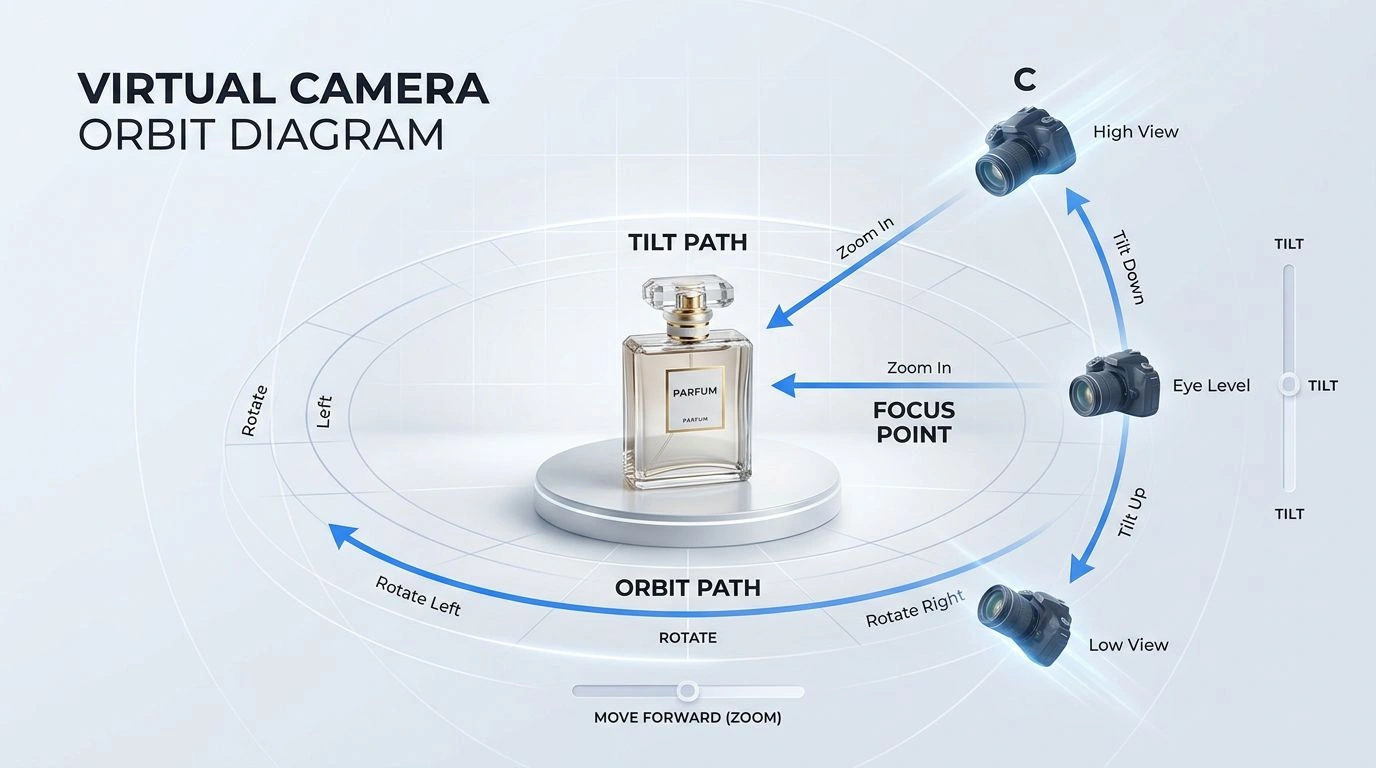
Change Camera exposes a small set of intuitive controls that map directly to real camera movements:
- Rotate (−90° to +90°): Swing the camera left or right around the product to reveal a new side. Positive values rotate left, negative values rotate right.
- Move Forward (0 to 10): Push the camera in toward the subject for a tighter, close-up framing — the AI fills in surrounding detail so you don't lose quality.
- Vertical Tilt (bird's-eye to worm's-eye): Shift the vertical angle from a high, top-down bird's-eye view (−1), to level (0), to a low, looking-up worm's-eye view (1).
- Wide-Angle lens: Toggle on for a more dramatic, immersive perspective — ideal for hero shots, interiors, and furniture.
- Aspect Ratio: Output in the shape each channel needs — 1:1 for marketplace thumbnails, 16:9 for banners, 9:16 for Stories and Reels, or match the input.
- Extra prompt (optional): Add styling guidance like "golden hour lighting" to nudge the mood of the re-rendered shot.
Each generation costs a single credit, so experimenting with different angles is cheap.
Ecommerce Use Cases for Change Camera
Here's where the tool earns its keep in a real online store:
1. Build a Full Angle Set From One Photo
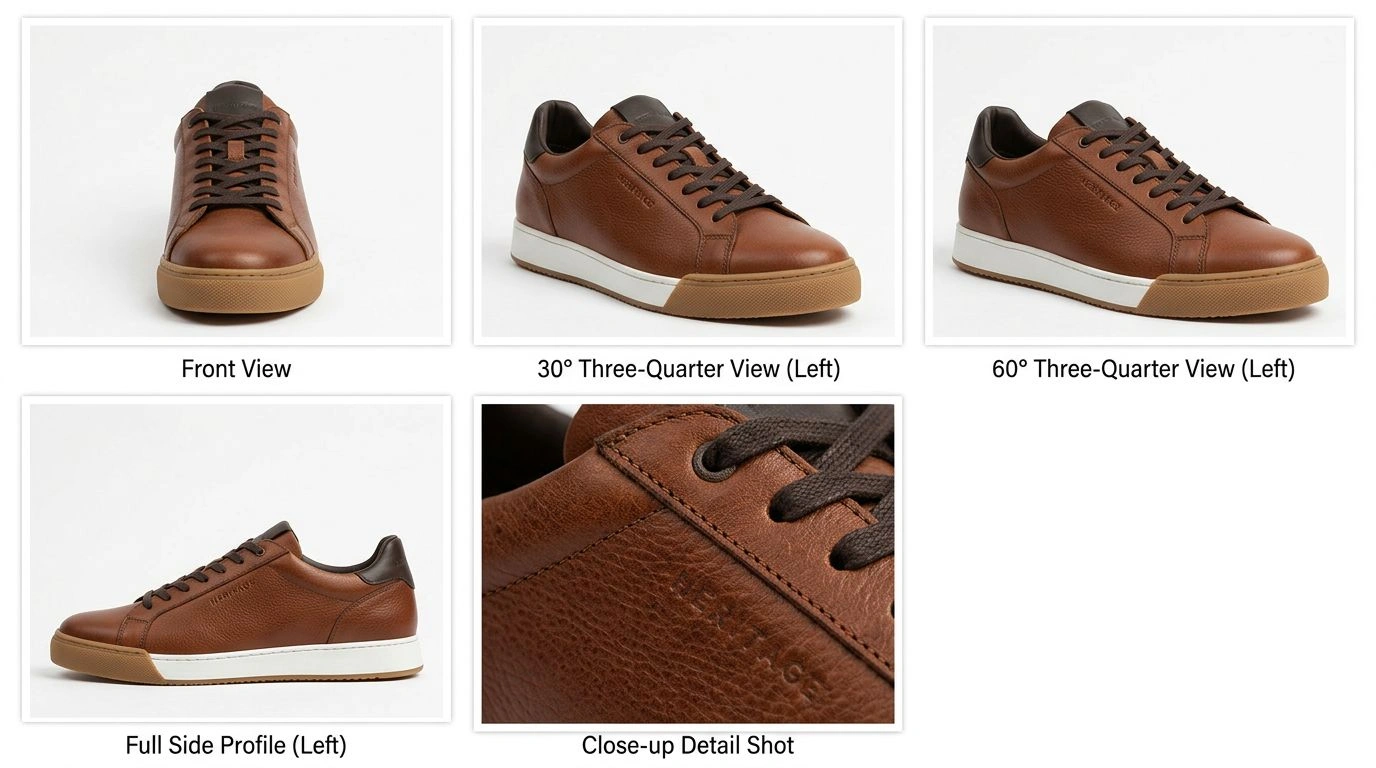
Have a single front-on shot from a supplier? Rotate it 30°, 60°, and 90° to generate left and right three-quarter and side views — a complete gallery from one source image.
2. Create Close-Up Detail Shots
Use Move Forward to push in on stitching, a logo, a clasp, or a fabric weave. Detail shots reassure buyers about quality and craftsmanship.
3. Produce Hero and Thumbnail Images
Turn on wide-angle and a slight worm's-eye tilt to make a product look bold and premium — perfect for the listing's lead image or a homepage banner.
4. Make Platform-Specific Crops
Generate the same product at 1:1 for Amazon and Shopify grids, 9:16 for Instagram and TikTok, and 16:9 for email headers — all from one master shot.
5. Salvage Limited Dropshipping Photos
When you only have one or two manufacturer images, Change Camera lets you build a richer, more original gallery instead of reusing the exact same stock photo every competitor has.
6. Generate Flat-Lay and Top-Down Views
Tilt to a bird's-eye angle to create clean top-down or flat-lay style images that are popular for apparel, accessories, and beauty products.
This pairs naturally with other catalog tools — for example, combine it with the ghost mannequin effect for apparel, or with AI virtual try-on to show products in context.
How to Change a Product's Camera Angle Step by Step
- Upload your product photo. Open the Change Camera tool and upload the image you want to re-frame.
- Move the virtual camera. Use the Rotate, Move Forward, and Vertical Tilt sliders — and toggle wide-angle if you want extra drama.
- Set the aspect ratio. Choose the shape that matches where the image will be published.
- Add an optional prompt. Include any styling notes, like a lighting style, if you want to fine-tune the look.
- Generate and download. Click Change Camera, let the AI re-render the scene, and download your new angle.
The whole process takes seconds, and you can regenerate as many variations as you need.
Tips for Clean, Consistent Results
- Start with a sharp, well-lit photo. The clearer the source, the better the AI understands the product's shape and materials.
- Make one move at a time. Adjust rotation or tilt first, review the result, then layer in additional moves. Drastic combined moves are harder to keep consistent.
- Use smaller rotations for complex products. Items with text, logos, or intricate parts hold up best with moderate angle changes; extreme 90° swings work best on simpler shapes.
- Push in gradually. For close-ups, increase Move Forward step by step rather than jumping to the maximum.
- Match the aspect ratio to the destination so you're not cropping the product awkwardly later.
- Regenerate for variations. Because each render is only a credit, it's worth generating a couple of options and picking the cleanest one.
Change Camera vs. a Traditional Reshoot
It's worth being clear about the trade-off:
- Traditional reshoot: Requires the physical product on hand, a photographer or studio, lighting setup, and typically days of turnaround and significant cost per angle.
- Change Camera: Works from a single existing photo, produces a new angle in seconds, costs one credit per render, and needs no equipment or product handling.
For genuinely critical hero imagery, a professional shoot still has its place. But for filling out angle sets, building platform variants, and moving fast on new listings, Change Camera does in seconds what used to take a production schedule. If your bottleneck is photography turnaround, see also how to launch faster without extra photoshoots.
Frequently Asked Questions
How do I change the camera angle of a product photo? Upload the image, adjust the virtual camera with the rotate, zoom, and tilt sliders, then click generate. The AI re-renders the scene from the new viewpoint while keeping the product and lighting consistent.
Will the product stay consistent? Yes. The tool re-renders the same scene from a new angle, preserving the subject, colors, and composition — so it reads as the same product photographed from a different position, not a distorted copy.
What camera movements are supported? You can rotate up to 90° left or right, push the camera forward to zoom in, tilt vertically between a bird's-eye and worm's-eye view, and enable a wide-angle lens for a more dramatic perspective.
Is it good enough for marketplace listings? Yes — it's built to produce clean, consistent angles suitable for ecommerce galleries, ads, and social. Start from a high-quality source image for the best results.
Are my images private? Yes. Uploaded images remain your property and are automatically deleted from the servers after a few hours.
Conclusion
Great product images sell products — and multiple camera angles are one of the most reliable ways to lift conversion and cut returns. The Change Camera tool makes a complete angle set achievable without a studio, a photographer, or the product in hand. Rotate, zoom, and tilt a virtual camera, and turn a single photo into a full gallery of viewpoints in seconds.
Ready to re-frame your catalog? Try the Change Camera tool today.