How to Make a Repeat Pattern from Your Own Motifs
Patternful Team | 7 min read
Most AI pattern tools give you a tile whose edges join — and nothing else. The motifs land wherever the model put them, at whatever size it chose. That is fine for a loose, painterly all-over print, but it is not what a surface designer means by a repeat: the same motifs, the same size everywhere, in a strict grid or half-drop with room to breathe.
Pattern Repeat is built for that second kind. You bring one to four motifs, the repeat appears at once, and every choice a designer makes by hand — the arrangement, the drop, the mirror, the density, the spacing — is a control you can move and watch. Saving the pattern is free.
What Pattern Repeat does
A repeat pattern is a block of motifs, tiled. Pattern Repeat lets you set both halves:
- The block — which motifs, where they sit, how big, which way they turn. Start from one of ten ready arrangements and move things by hand if you like.
- The repeat — how the blocks tile: a straight grid, a drop or a brick, offset by 1/2, 1/3 or 1/4, with every other block mirrored, turned or pinwheeled if you want.
What you see is what you save: the preview and the saved file are drawn by the same layout, and the tile is seamless by construction — its edges always meet, whatever you choose.
How to make a repeat pattern, step by step
1. Add your motifs
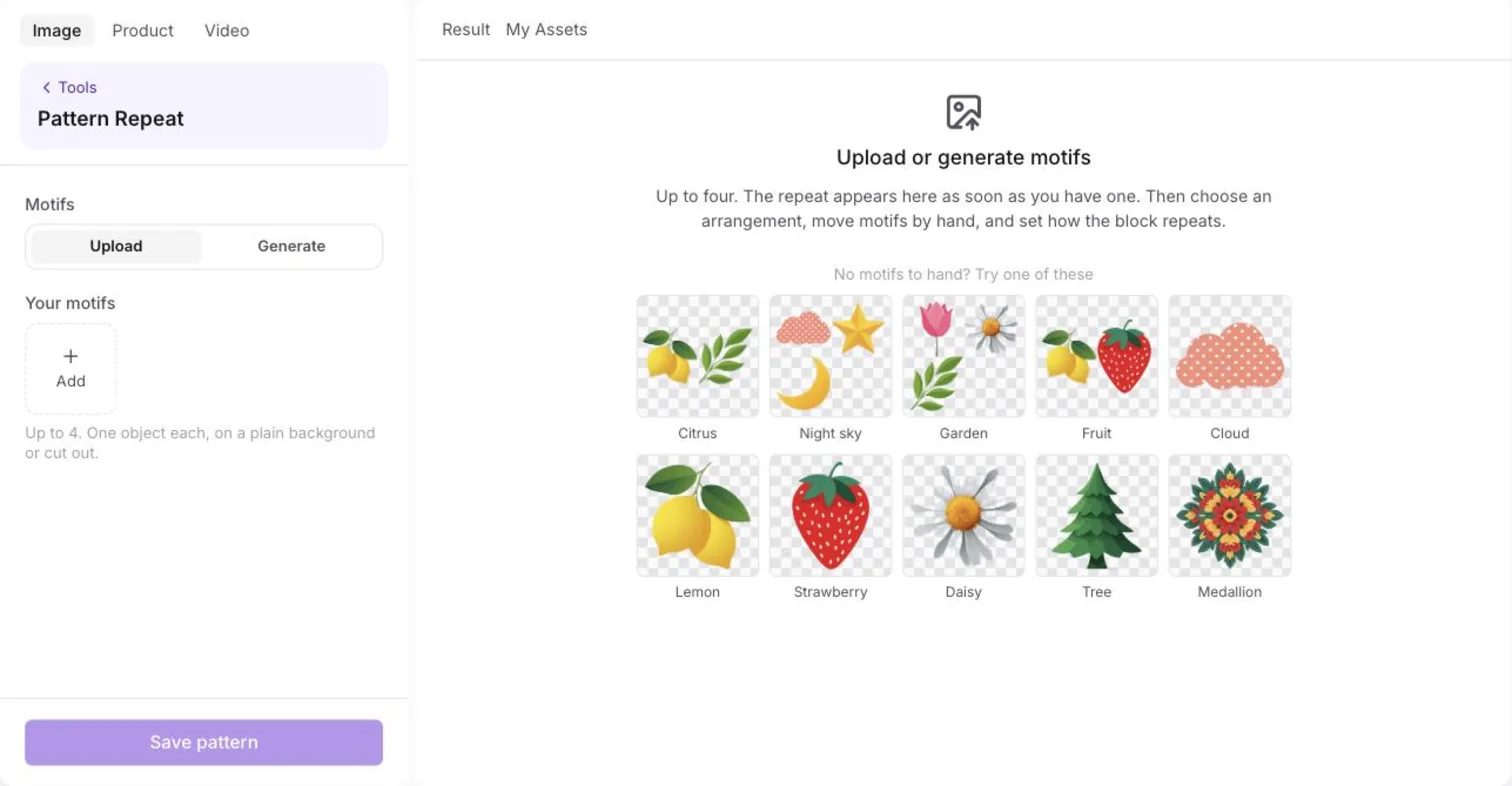
Open Pattern Repeat from the sidebar — it is under Pattern Studio, in the Arrange column. A motif is one object — a lemon, a flower, a star, your logo mark. You can use up to four, and they work best on a plain background or already cut out.
There are three ways to get them:
- Upload your own drawings or photos with the Add button.
- Generate them: describe one object ("cute cloud with white polka dots"), pick a style and an AI model, and choose how many candidates to draw. Each candidate is cut out for you; the first is added straight away, and a click adds or removes the others.
- Try an example — with no motifs yet, the canvas offers ready sets (Citrus, Night sky, Garden, Fruit) and single motifs, so you can explore before you make anything.
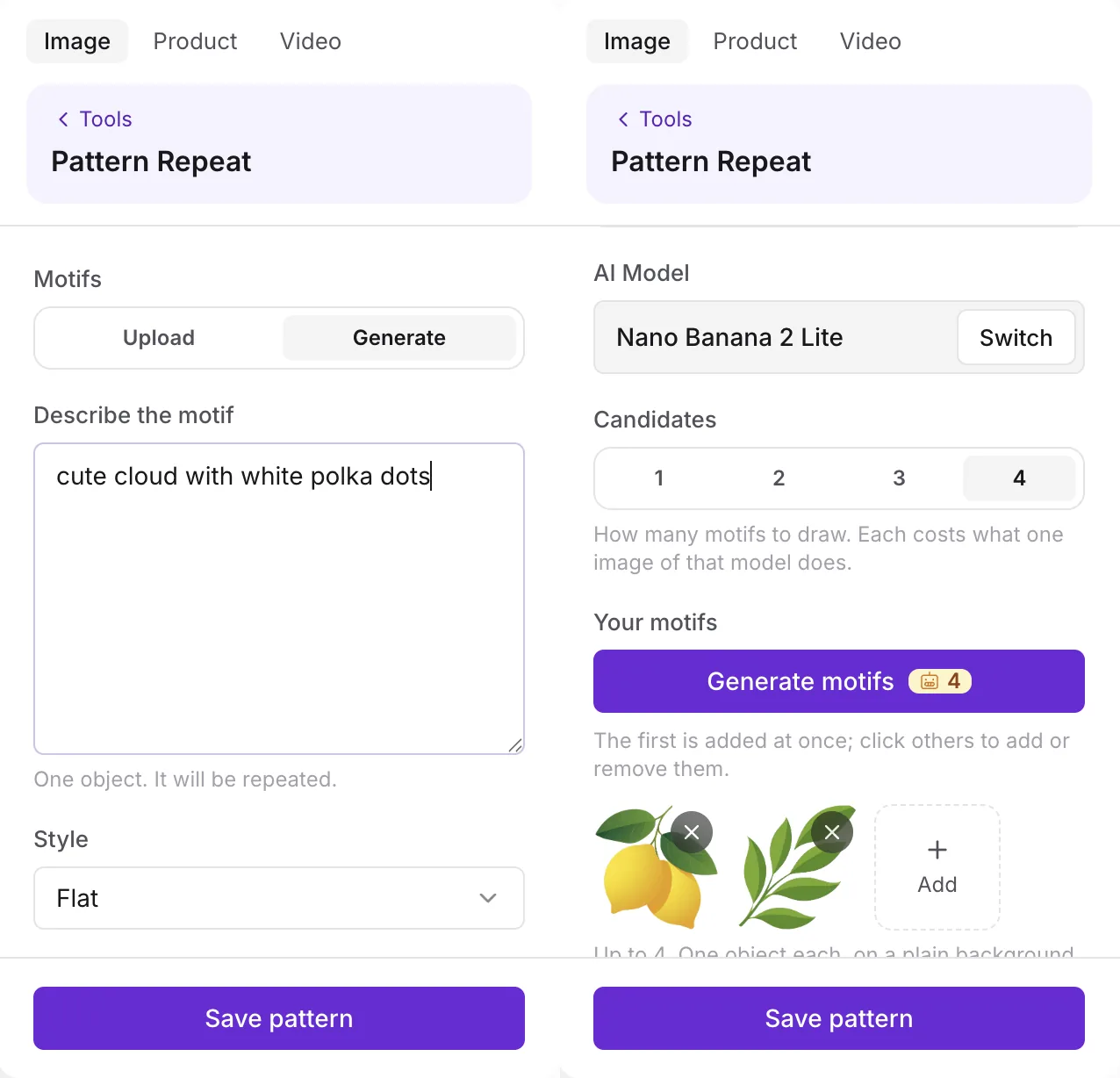
Generating motifs costs what the same number of images from that model costs, and the price is on the Generate motifs button before you press it. Uploads and examples cost nothing.
2. Choose an arrangement
As soon as there is one motif, the repeat is on the canvas. The dashed outline is the tile you will save; the faint copies around it show how it continues, so you can see the seams join.
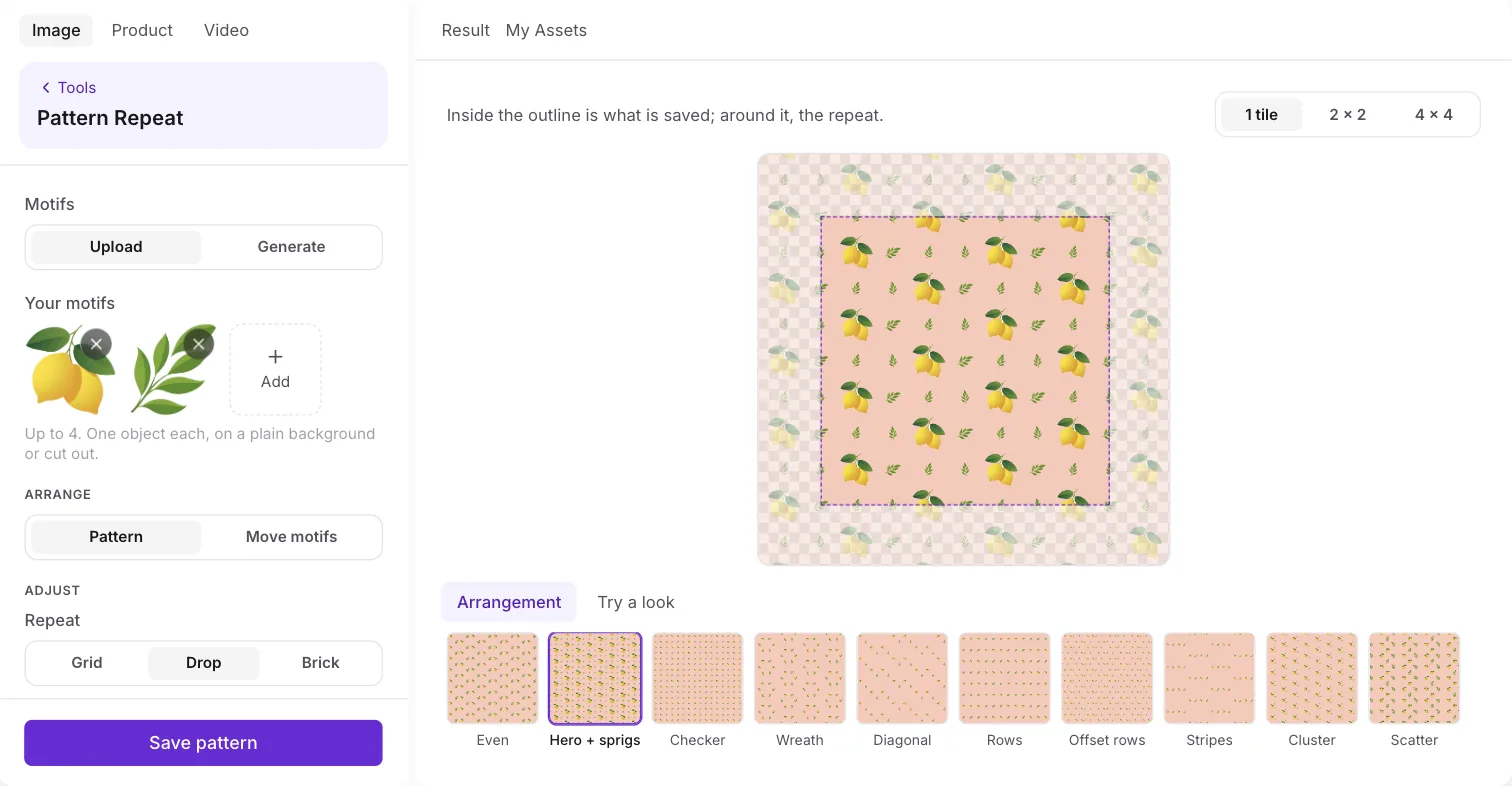
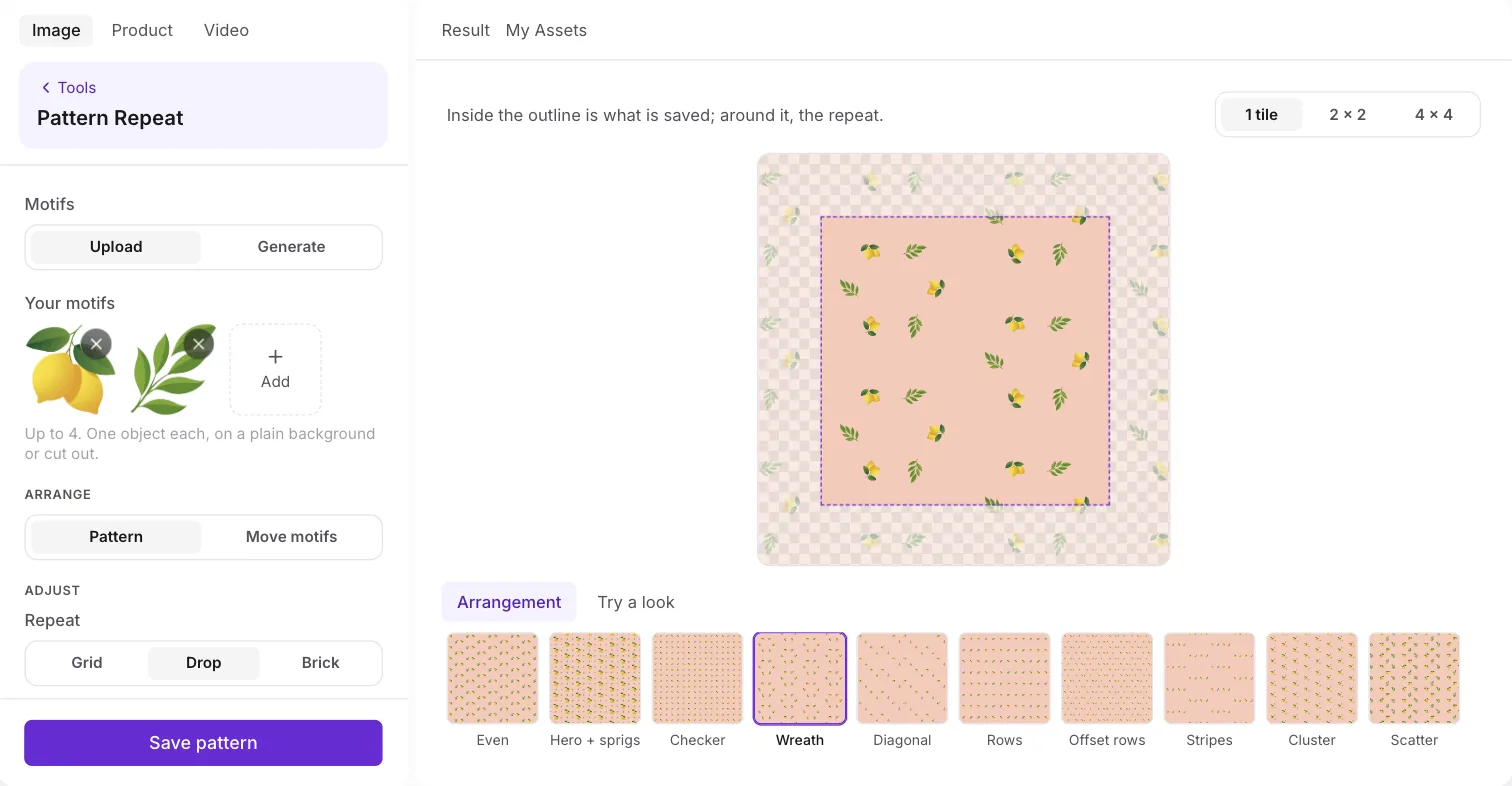
Under the canvas, the Arrangement row shows ten ways to lay your motifs out inside the block — Even, Hero + sprigs, Checker, Wreath, Diagonal, Rows, Offset rows, Stripes, Cluster and Scatter — each drawn with your own motifs. Hero + sprigs, for example, makes your first motif the large one and scatters the others around it as fillers.
3. Try a look
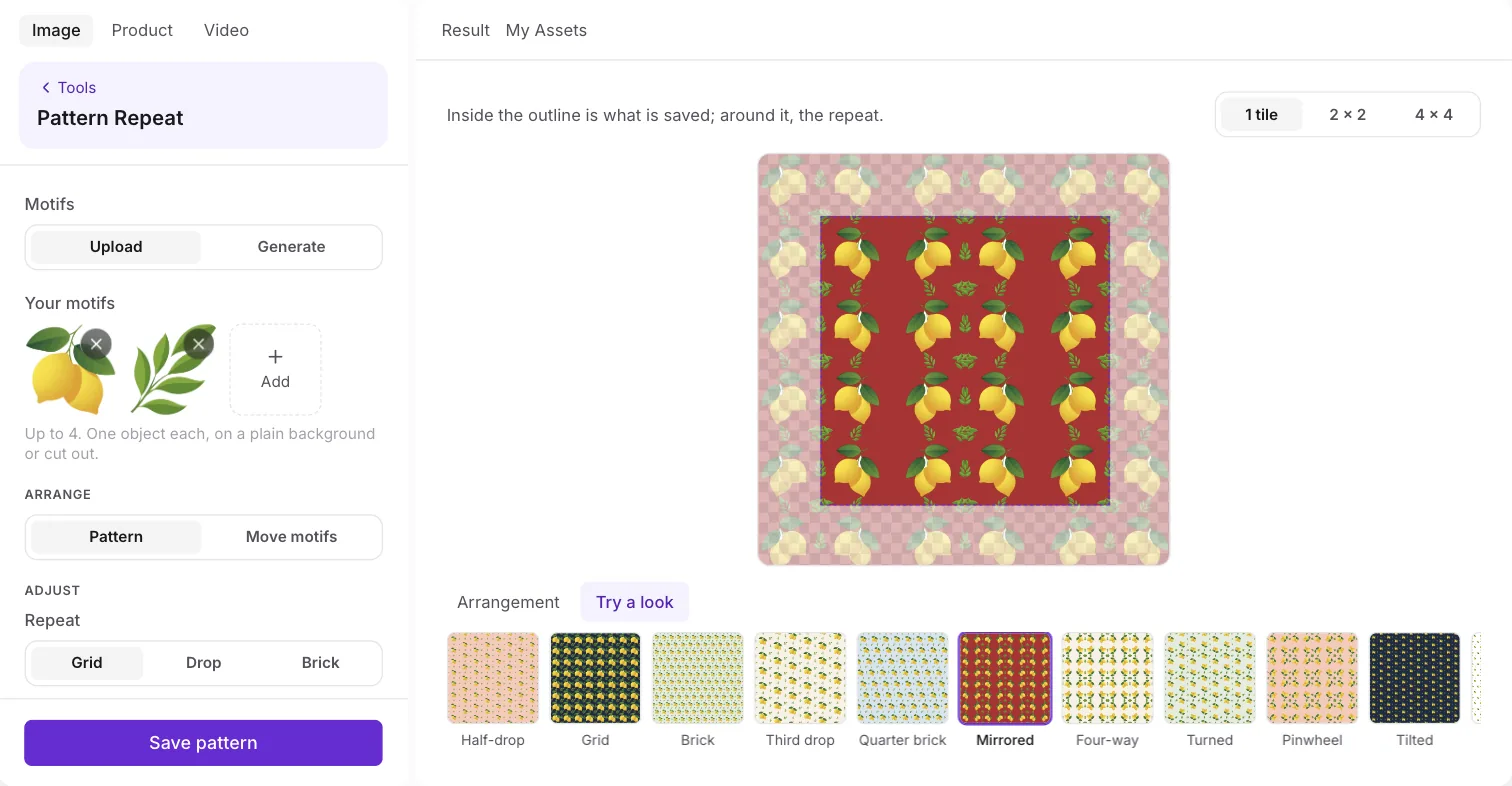
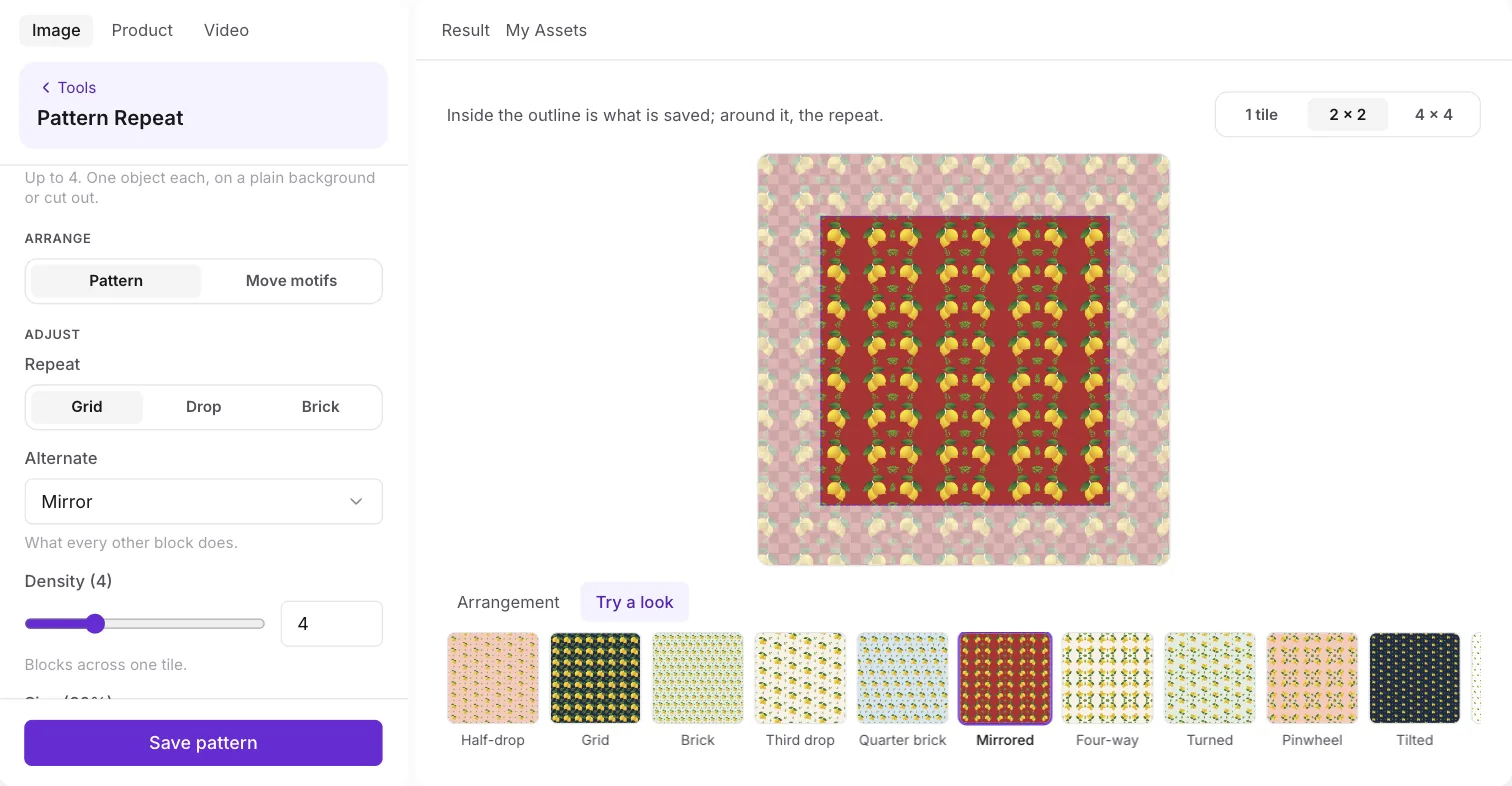
The Try a look tab holds twelve preset looks — Half-drop, Grid, Brick, Third drop, Quarter brick, Mirrored, Four-way, Turned, Pinwheel, Tilted, Ditsy and Bold. A look sets the repeat, density, size, rotation and background in one click, and keeps your arrangement. It is the fastest way to see your motifs as a textile print, a wallpaper or a gift wrap.
4. Fine-tune the repeat
Everything a look sets is also a control in the left column, under Adjust:
- Repeat — Grid, Drop or Brick. A drop shifts each column down; a brick shifts each row across.
- Offset — how far a drop or brick shifts: 1/2, 1/3 or 1/4 of a block. A third or quarter drop hides the repeat better than the classic half-drop.
- Alternate — what every other block does: Mirror, Mirror 4-way, Turn or Pinwheel.
- Density — how many blocks fit across one tile, from 1 to 12.
- Size — how much of its space each motif fills.
- Spacing — the gap between motifs. They keep their size; the saved tile grows or shrinks to make room.
- Rotation — tilt every motif up to 45° either way.
- Background — one of the swatches, a colour of your own, or transparent.
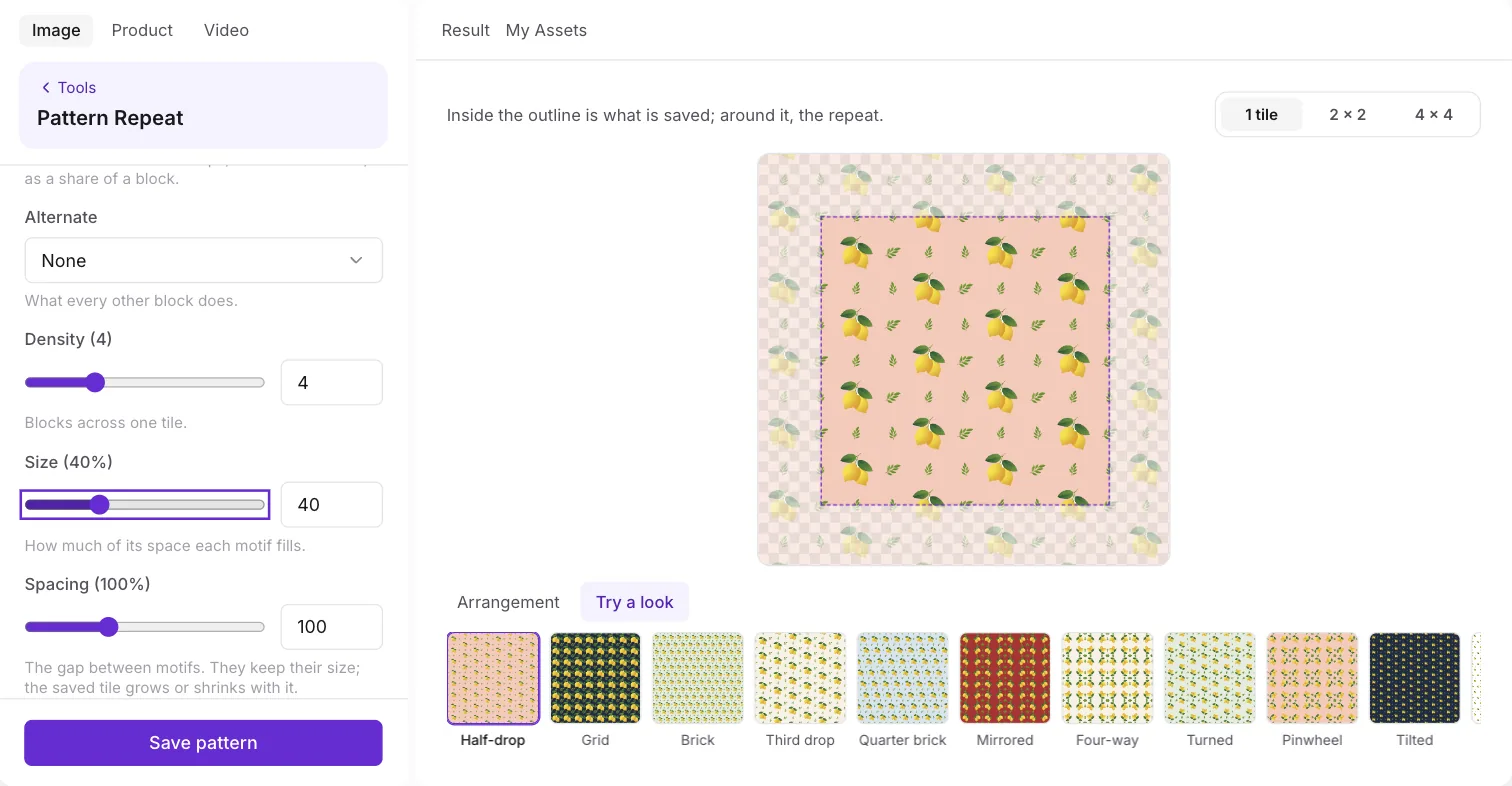
Switch the canvas to 2 × 2 or 4 × 4 to see the tile repeated at a smaller scale. That is where unwanted lines and stripes show up — the eye finds them far more easily across sixteen tiles than in one.
5. Move motifs by hand
When an arrangement is close but not quite right, switch from Pattern to Move motifs. You see one block at full strength with its neighbours faint around it, so a motif you drag over the edge shows up where the repeat puts it on the other side.
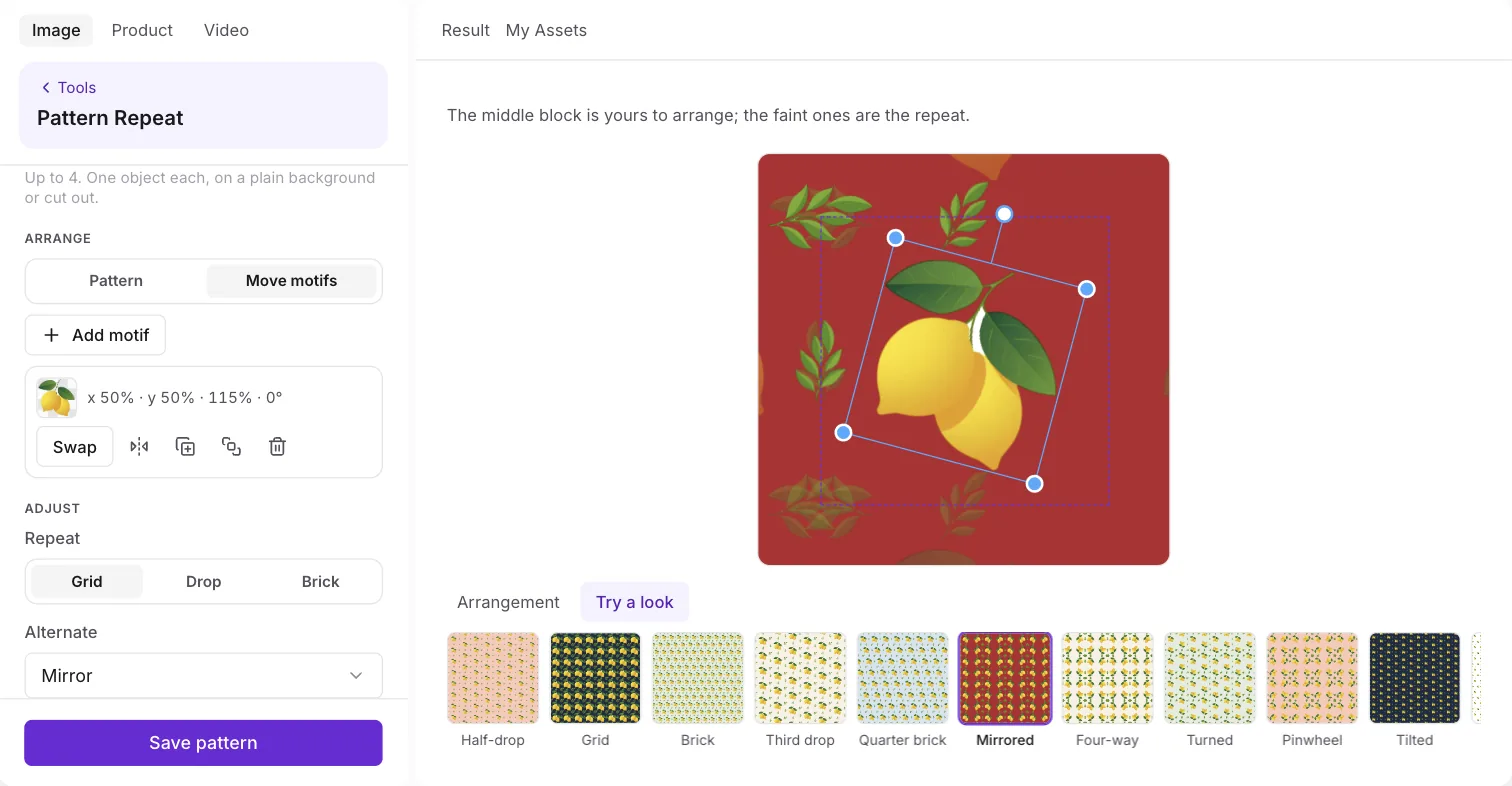
- Drag a motif to move it, drag a corner to resize it, and drag the round handle to turn it.
- Select one for more: Swap it for another motif, Flip, Duplicate, Bring to front or Remove.
- Add motif puts another into the block; Reset arrangement goes back to the arrangement you chose.
- From the keyboard: arrows nudge (Shift for a bigger step), [ and ] turn, − and = resize, F flips and Delete removes.
6. Save and download
Press Save pattern. The tile is rendered at full size and kept in your library — and it costs no credits. The canvas says "Saved to your library", and the Download button gives you the file.
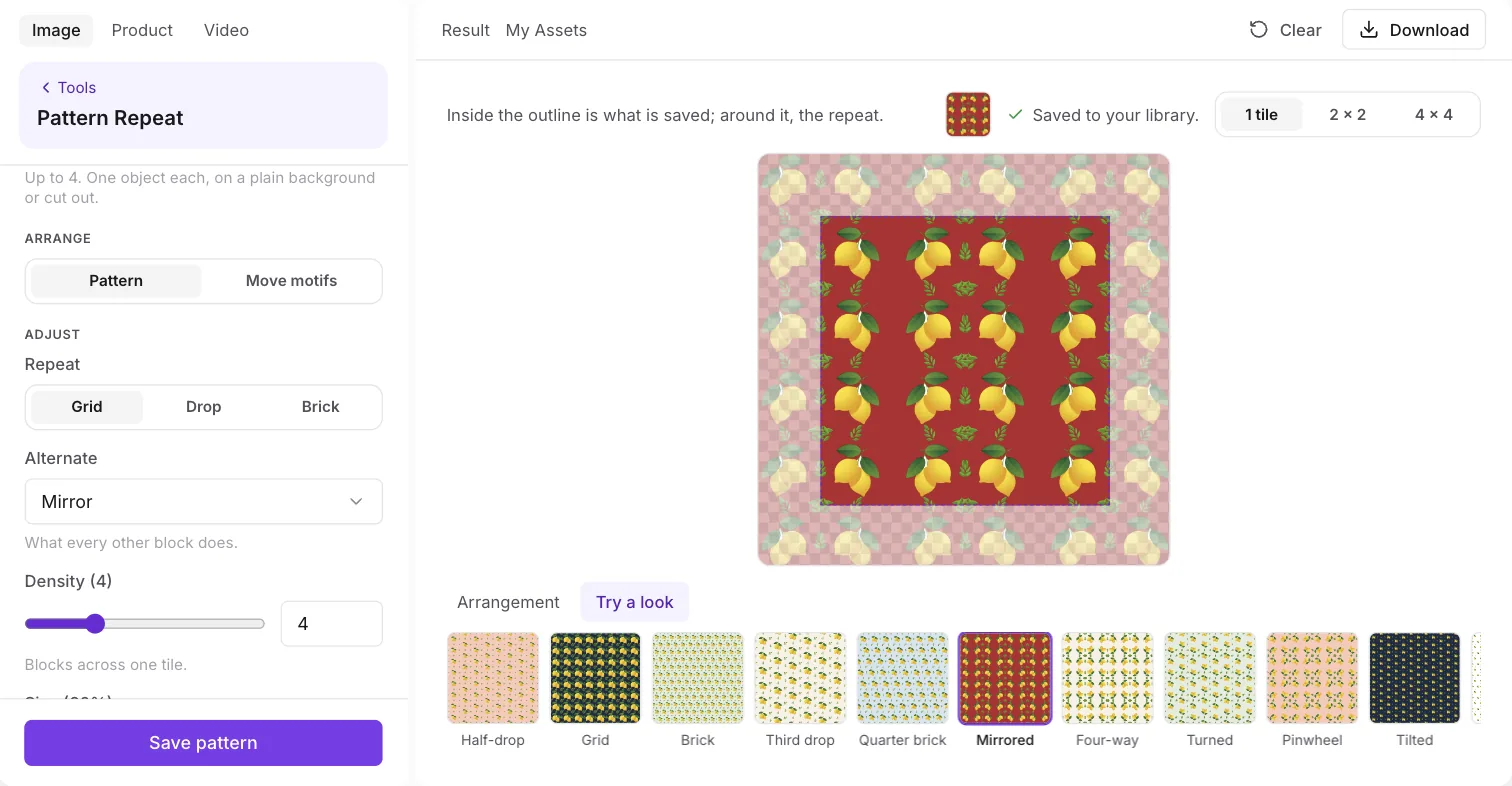
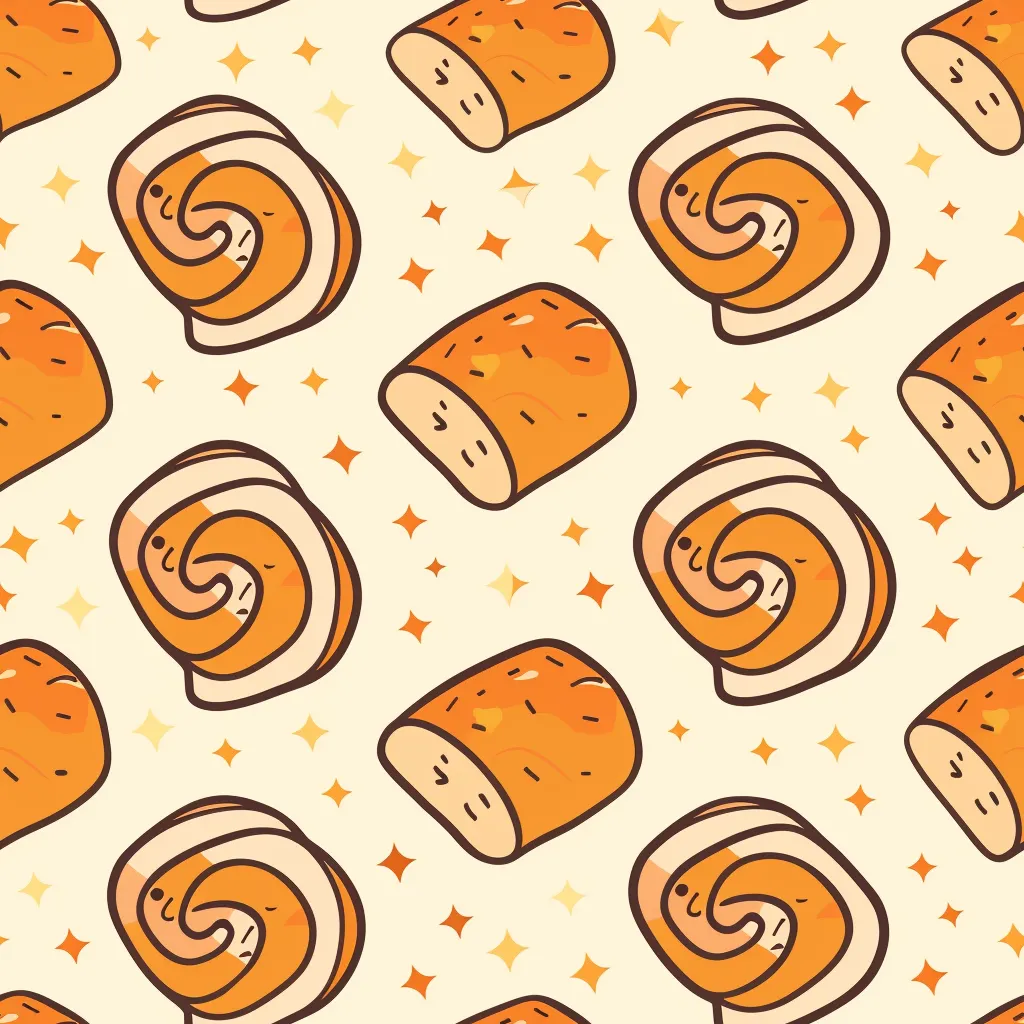
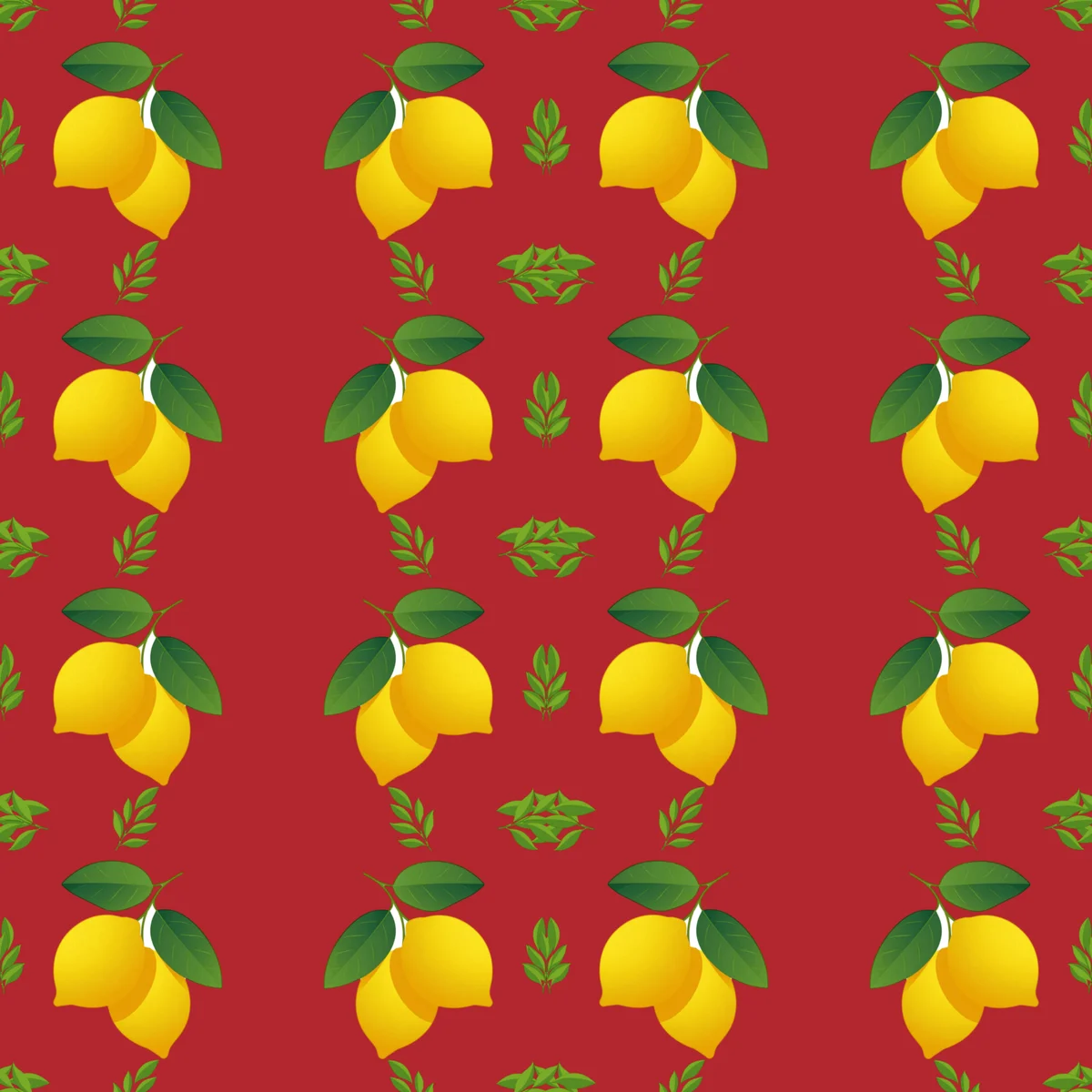
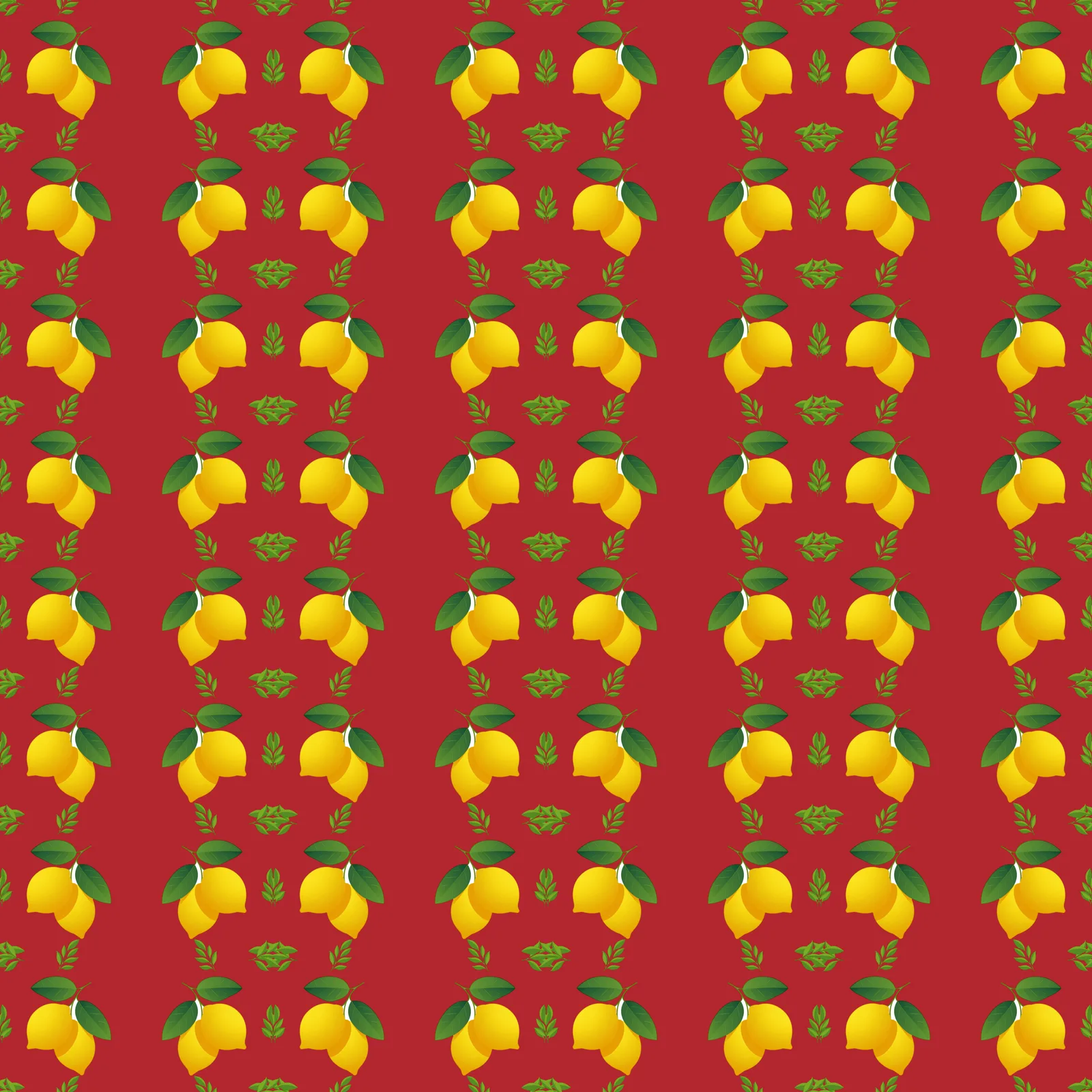
At the default spacing the saved tile is 2048 × 2048 pixels; more spacing makes it larger, less makes it smaller. Here is the tile from this walkthrough, and four copies of it side by side — no seam anywhere:
Where to use it
Orderly repeats are the backbone of most printed products. A few places they earn their keep:
- Fabric and quilting cotton. The half-drop is the textile industry's default because it hides the vertical seam on long yardage. Print-on-demand fabric shops take a seamless tile and repeat it for you.
- Wallpaper. Wallpaper is hung in drops, so a 1/2 or 1/3 drop lines up across strips the way the paper will.
- Gift wrap, stationery and packaging. Grids and bricks of a single motif read clearly at small sizes; Mirror and Four-way give a more formal, tiled look.
- Kids' clothing and pajamas. The Ditsy look — many small motifs, densely tossed — is the classic print for children's wear.
- Brand patterns. Put your logo mark and one or two shapes in a block, choose your brand colour as the background, and you have a pattern for tissue paper, labels, social headers and merch.
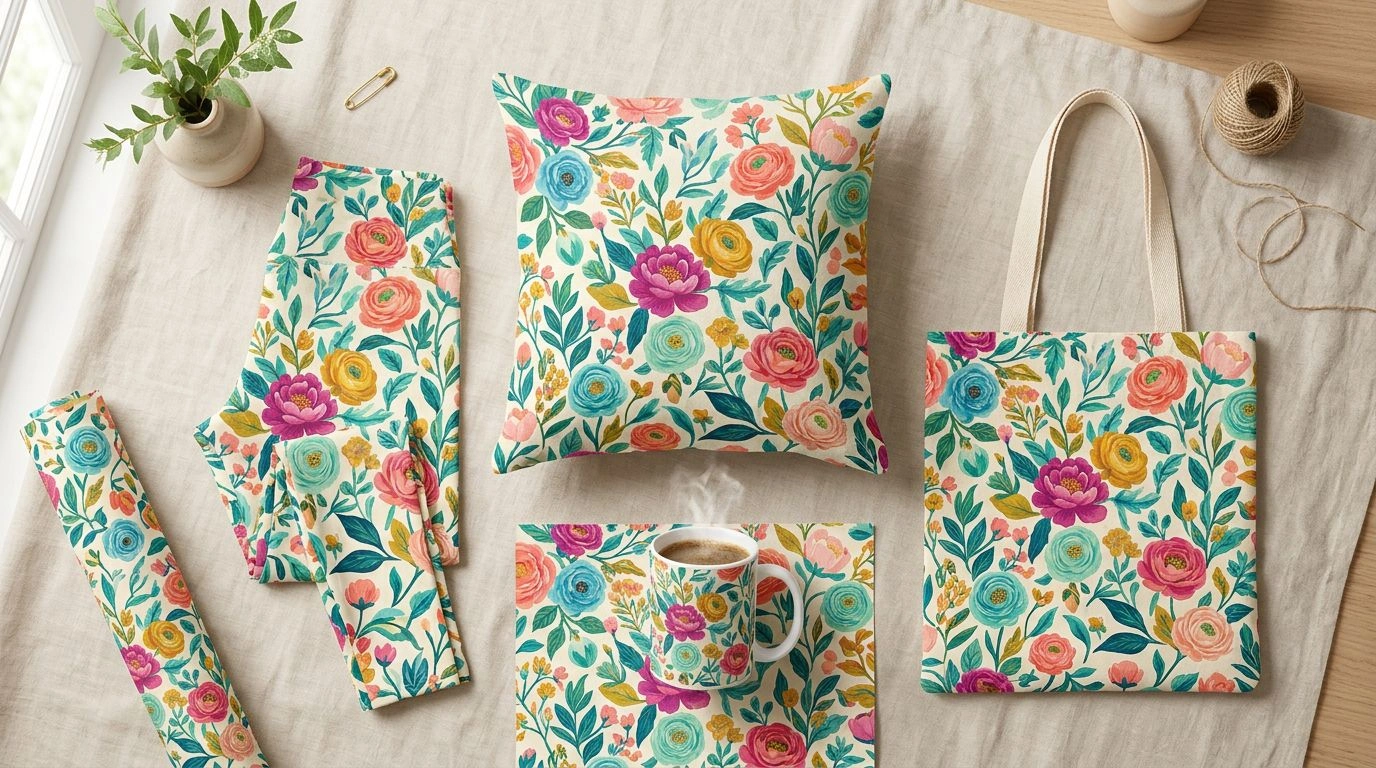
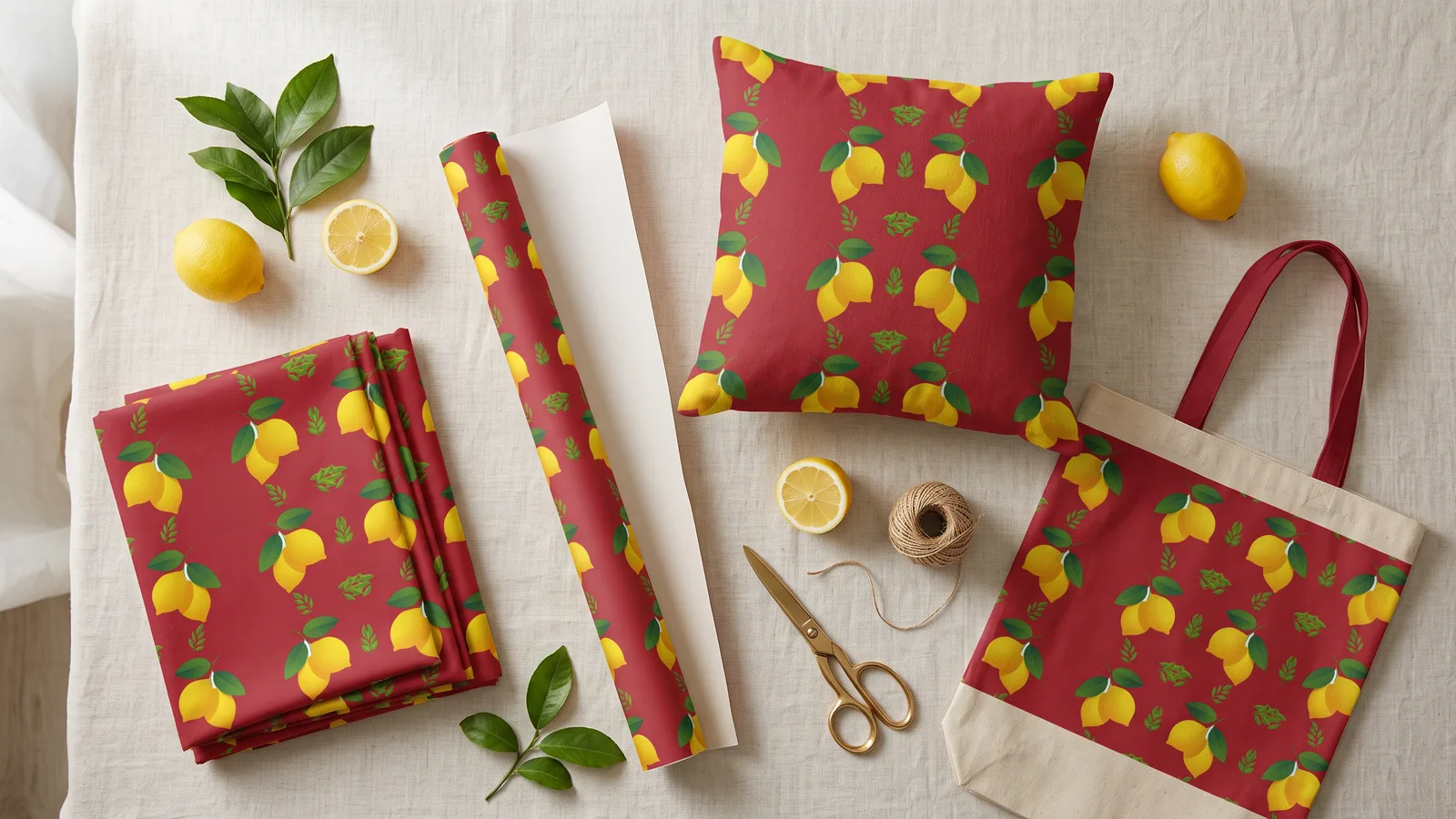
- Print-on-demand stores. Phone cases, tote bags, leggings and mugs all take a seamless tile; one set of motifs becomes a whole collection when you vary the look and background.
- Backgrounds for the web and slides. A transparent background gives you motifs on nothing, ready to lay over any colour later.
Pattern Repeat is not the right tool for every pattern. For a painterly, organic all-over design where nothing should line up, use the Seamless Pattern generator instead — that is what it is for.
Tips for better repeats
- One object per motif. A single lemon repeats cleanly; a whole still life does not.
- Keep the motifs in one style. Generating them together with one style setting keeps line weight and colour consistent.
- Mix sizes. A large hero motif with small fillers (Hero + sprigs) looks designed; four motifs of equal weight can look like a sticker sheet.
- Give them room. If a pattern feels crowded, raise Spacing rather than lowering Size — the motifs stay crisp and the tile simply grows.
- Check at 4 × 4. If you see diagonal lines or stripes you did not intend, try a 1/3 offset or a Turn alternate.
What to do next
A saved pattern is an ordinary image in your library, so every other pattern tool can take it from there:
- Put it on products with the Mockup Generator.
- Make it larger for print with the Pattern Upscaler.
- Turn it into a scalable vector with the Pattern Vectorizer.
Open Pattern Repeat and start with one of the example sets — you will have a finished repeat in under a minute.